
Closing an opportunity: Step by step guide
Once you know the outcome of an enquiry, you can close the opportunity as Won or Lost. This keeps your pipeline up to date and records why each opportunity ended.
This feature is only available to team members with Sales Manager access. Contact the Driftrock support team (support@driftrock.com) to change your access level.
Assigning the opportunity
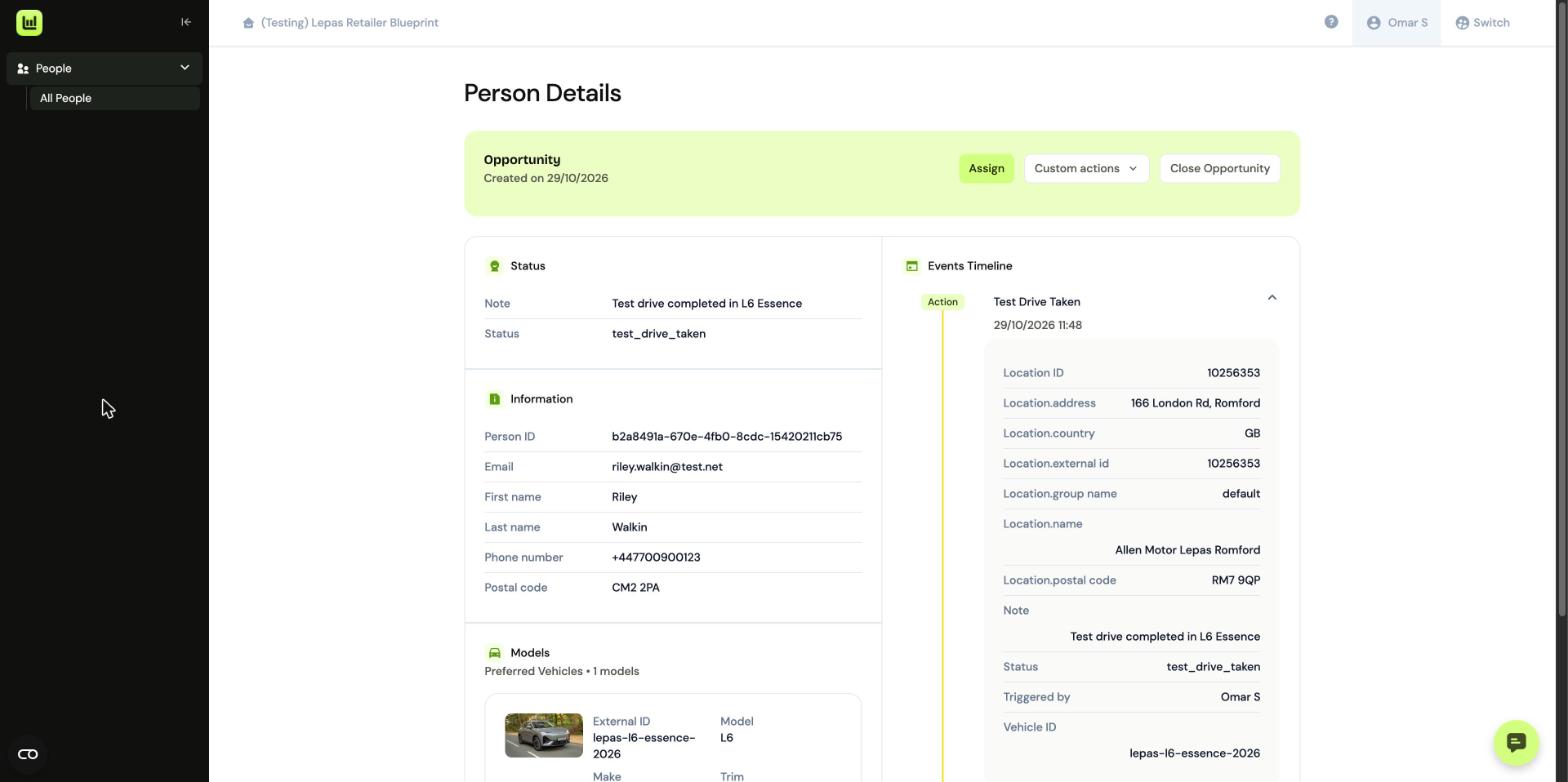
Before you can close an opportunity, it needs to be assigned. Open the customer's record and select Assign at the top of the page.
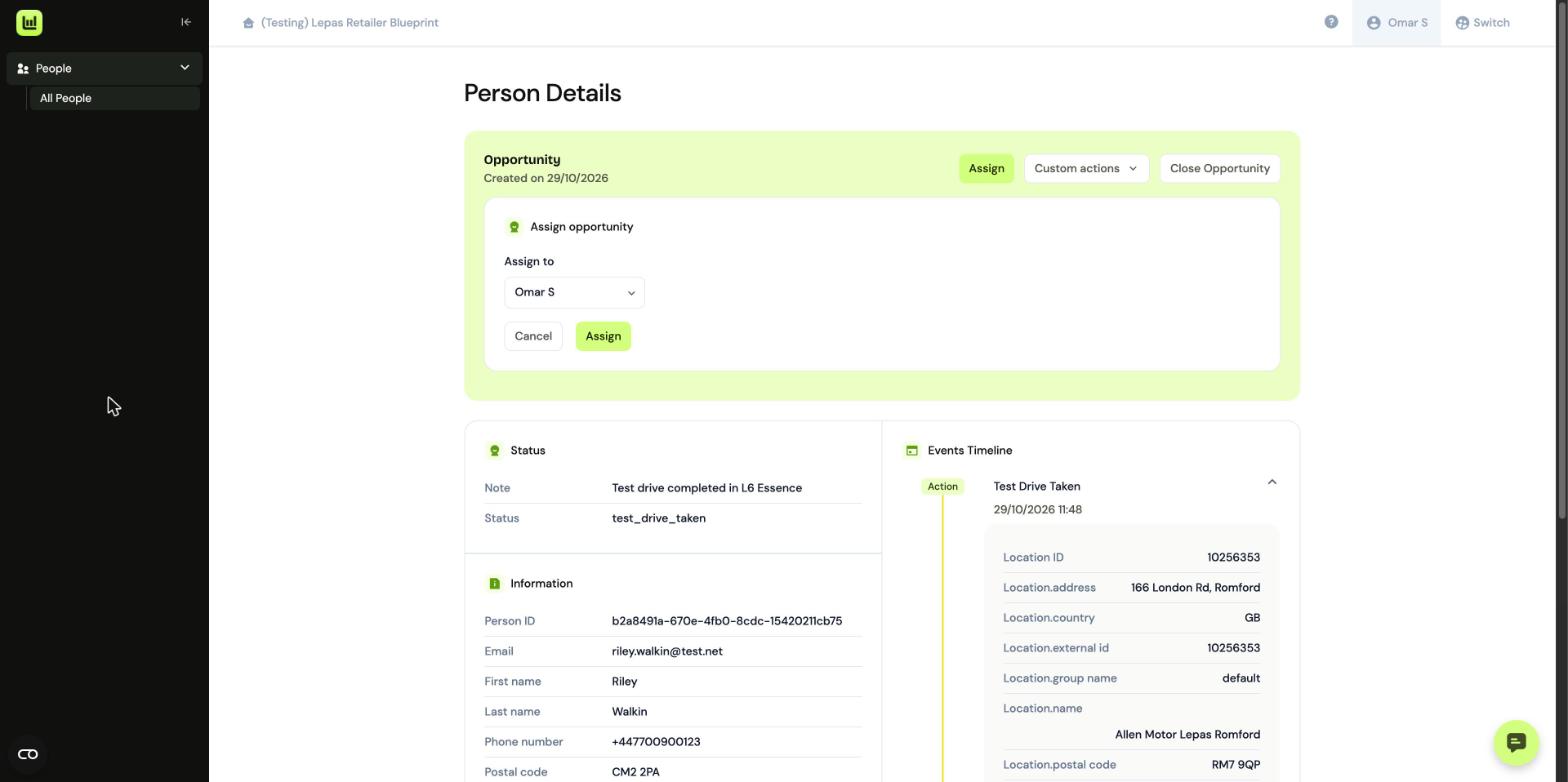
Choose who the opportunity should be assigned to from the dropdown, then select Assign.
Closing the opportunity
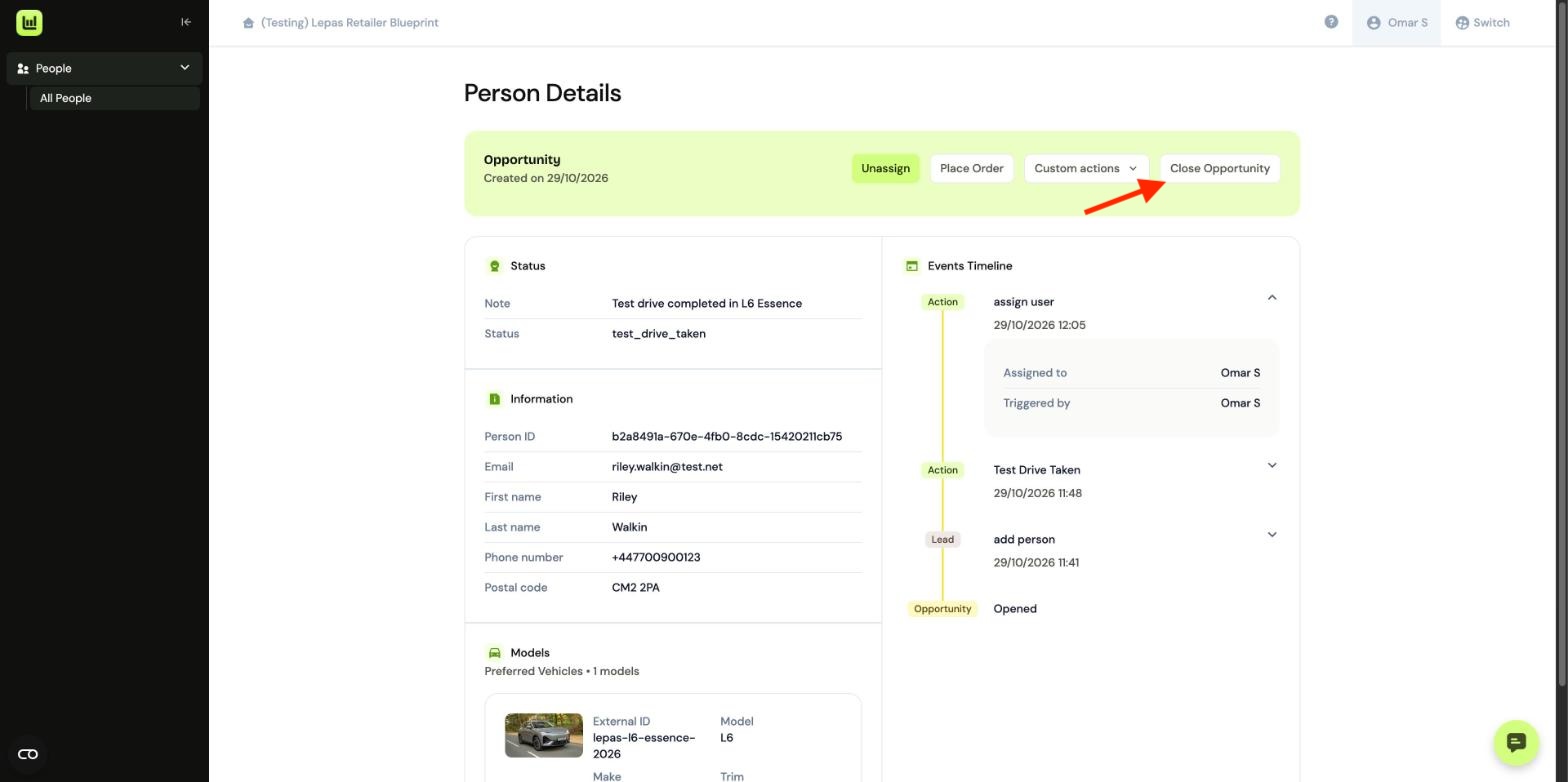
Once assigned, you'll see the Close Opportunity button at the top of the record. Select it to begin.
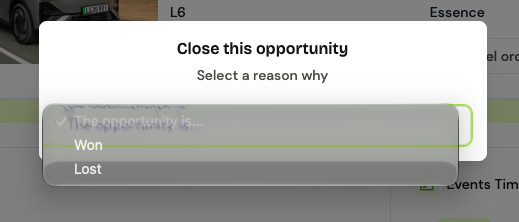
A window will open asking you to select a reason. Use the dropdown to choose whether the opportunity was Won or Lost.
Closing as Won
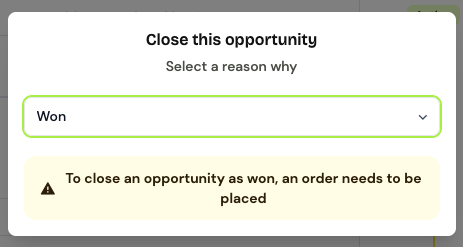
An order must be placed before an opportunity can be closed as Won. If no order has been recorded, you'll see a message asking you to place one first. To do this, use the Place Order button (see Logging vehicle orders).
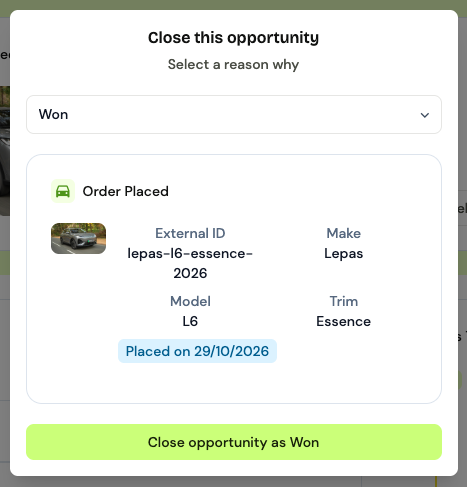
If an order has been placed, you'll see the order details, including the make, model and trim. Check these are correct, then select Close opportunity as Won.
Closing as Lost
If you select Lost, a second dropdown will appear. You must choose a reason before you can continue.
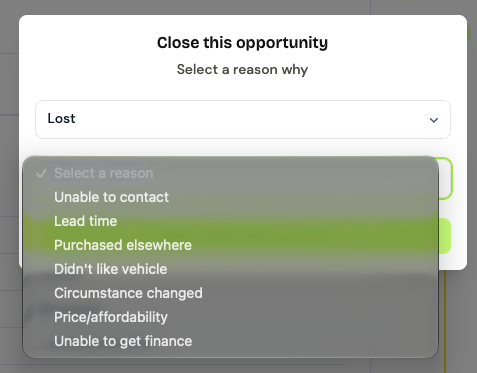
Choose the reason that best matches the outcome:
Unable to contact
Lead time
Purchased elsewhere
Didn't like vehicle
Circumstance changed
Price/affordability
Unable to get finance
Then select Close opportunity as Lost.