
Filtering the People view: Step by step guide
Filters let you narrow the People list to just the customers you need. For example, you can see your site's leads, a team member's leads, customers who've ordered, or lost sales. You can use filters on any tab: All, Assigned to me, Unassigned Opportunities, Assigned Opportunities
Not sure what a filter label means? Filter glossary at the bottom of this page.
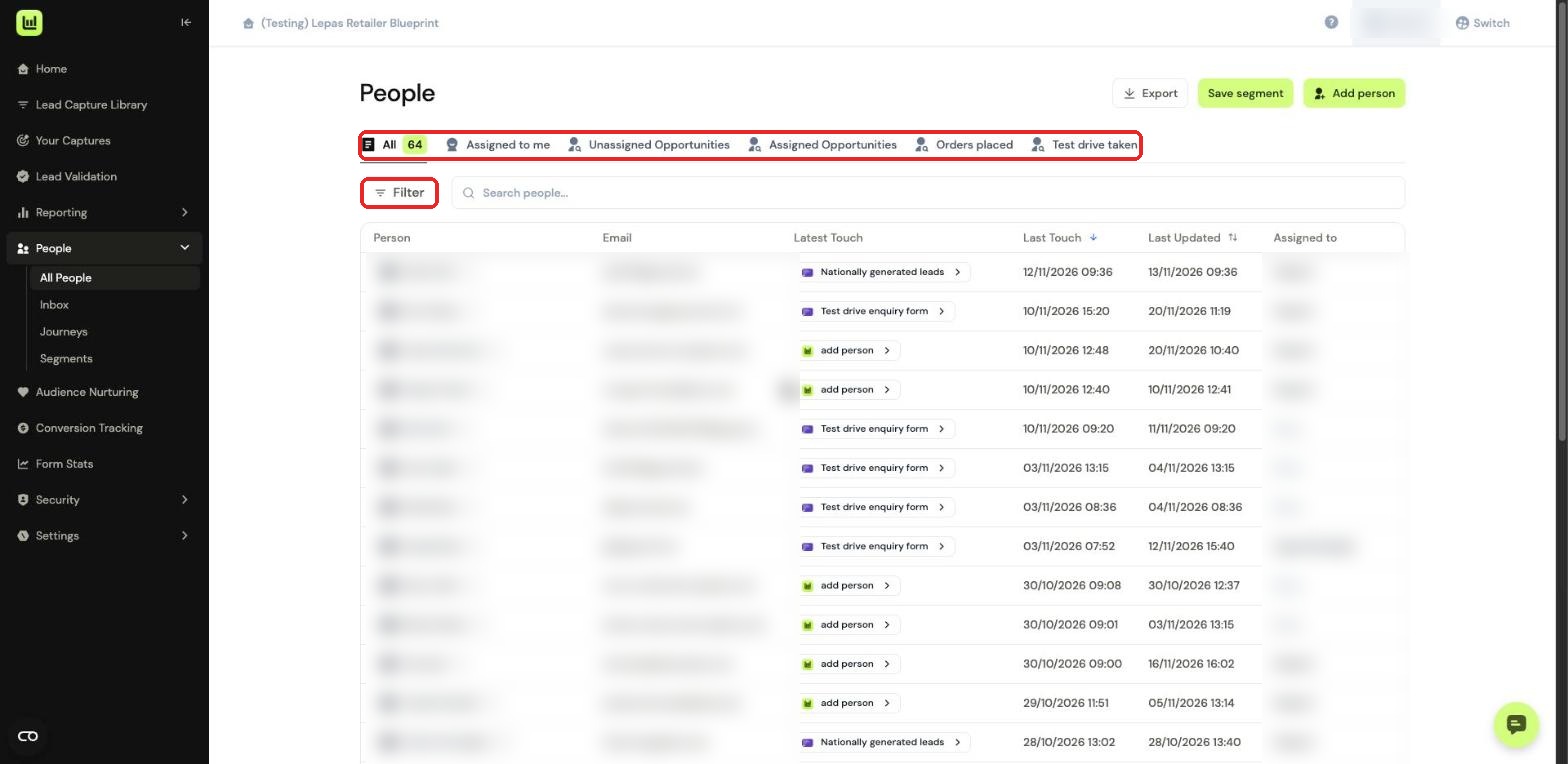
Adding a filter
Opening Filters
Go to People, then click Filter. There are two types of filter:
Add person filter – filters on details saved on the customer, such as their site or who they're assigned to.
Add event filters – filters on something that has happened to the customer, such as an order, a test drive or a lost sale.
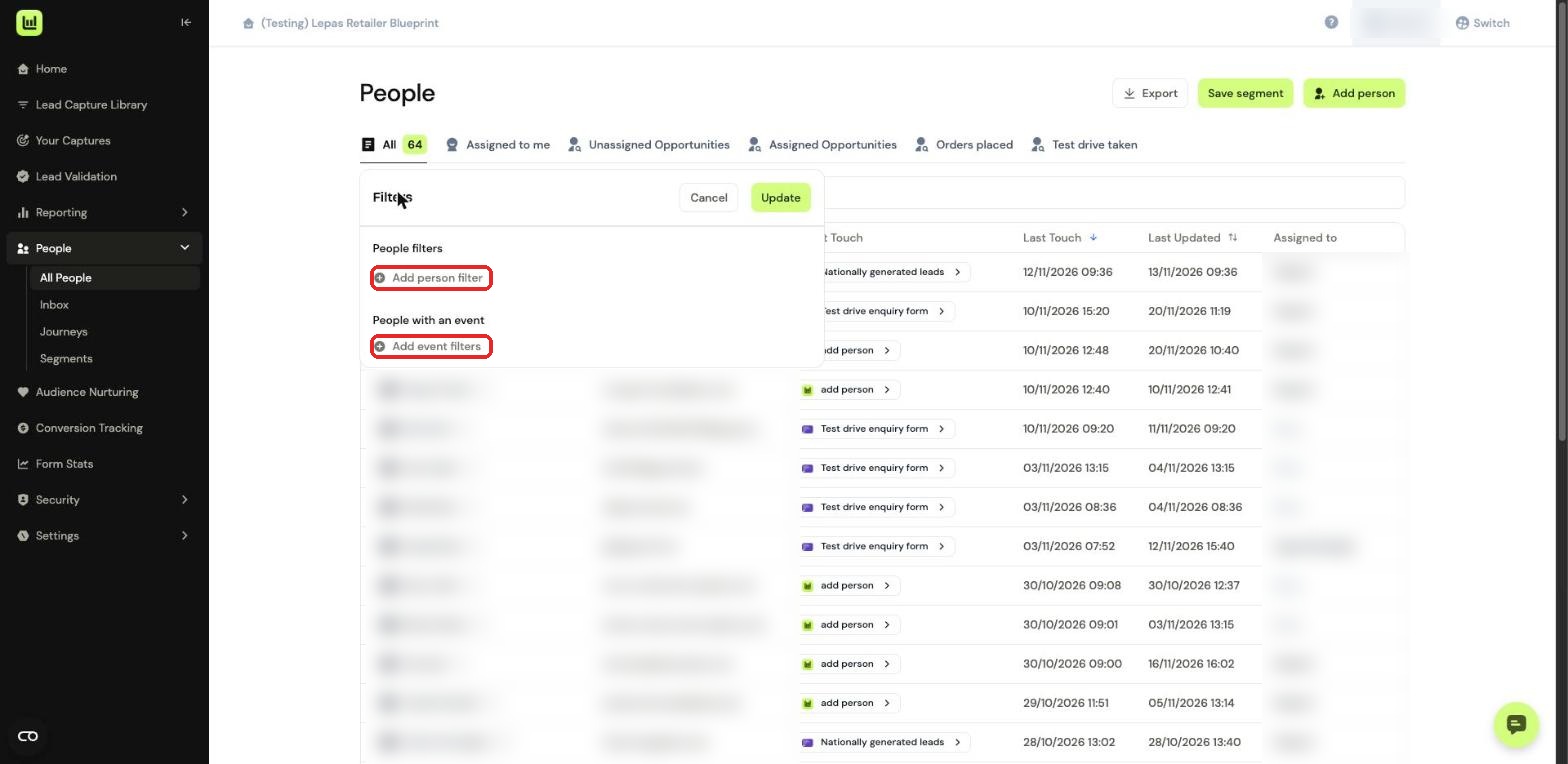
Choosing a field
Click Add person filter, then click the first box to choose a field. Type to search the list, for example "Location".
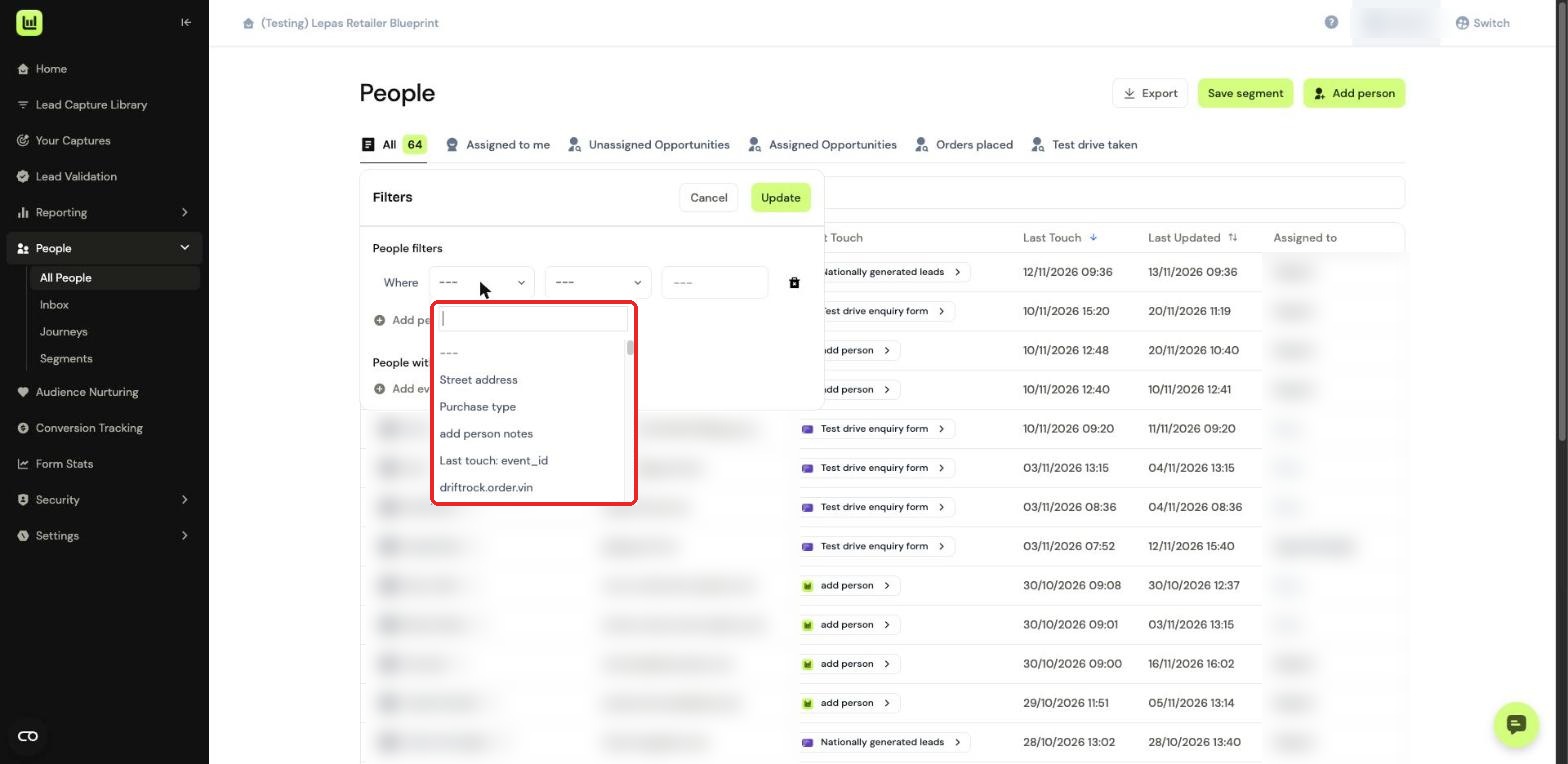
Choosing a condition
Click the second box and choose a condition:
is – an exact match. You pick the value from a list.
is not – leaves out one value.
is one of – matches any of several values.
is not one of – leaves out several values.
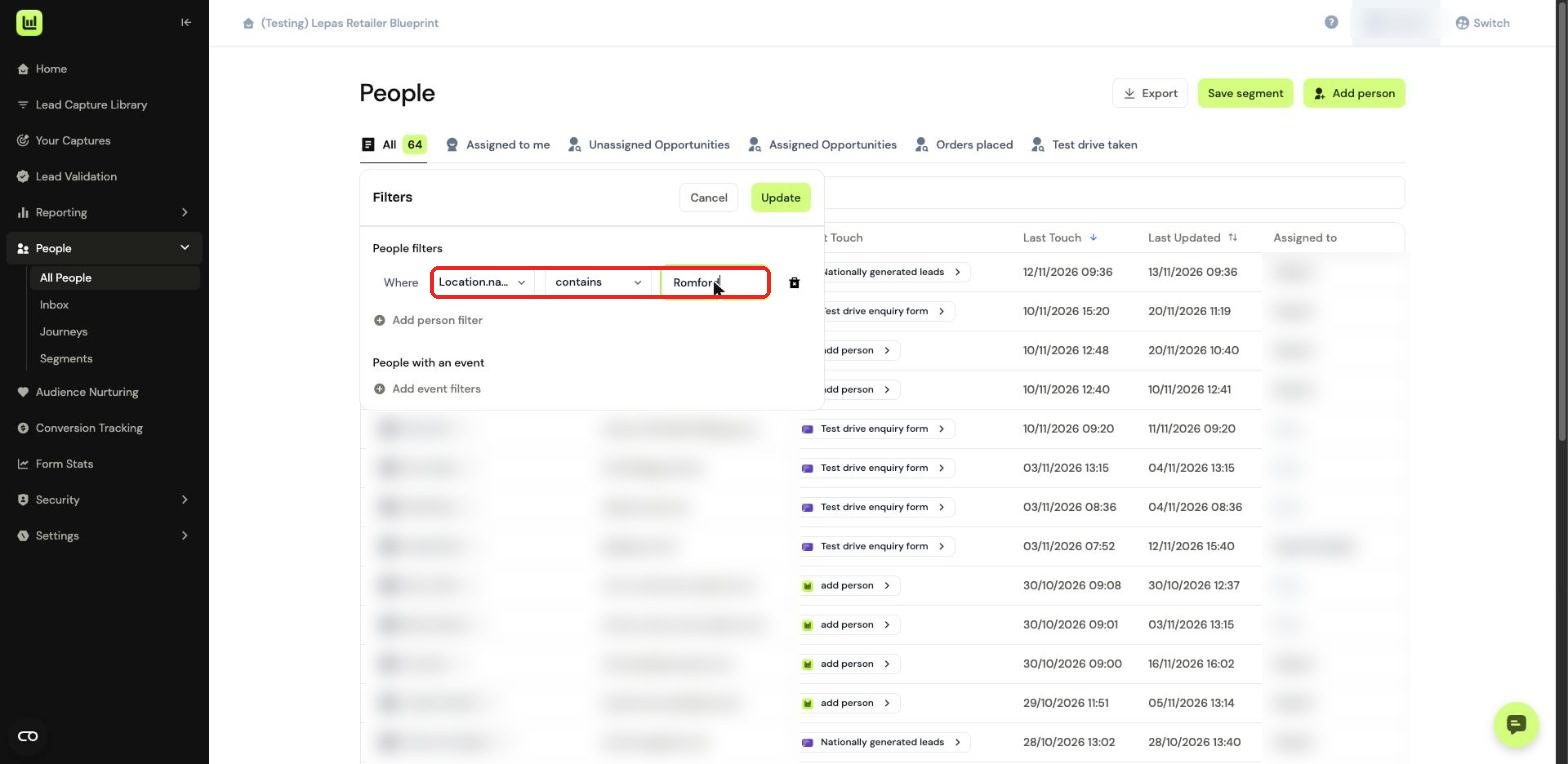
contains – matches part of the text you type. For example, "Romford" finds any site with Romford in its name.
does not contain – leaves out anything containing that text.
is empty – the field has nothing in it.
is not empty – the field has something in it.
Use is when you know the exact value. Use contains when you only know part of it.
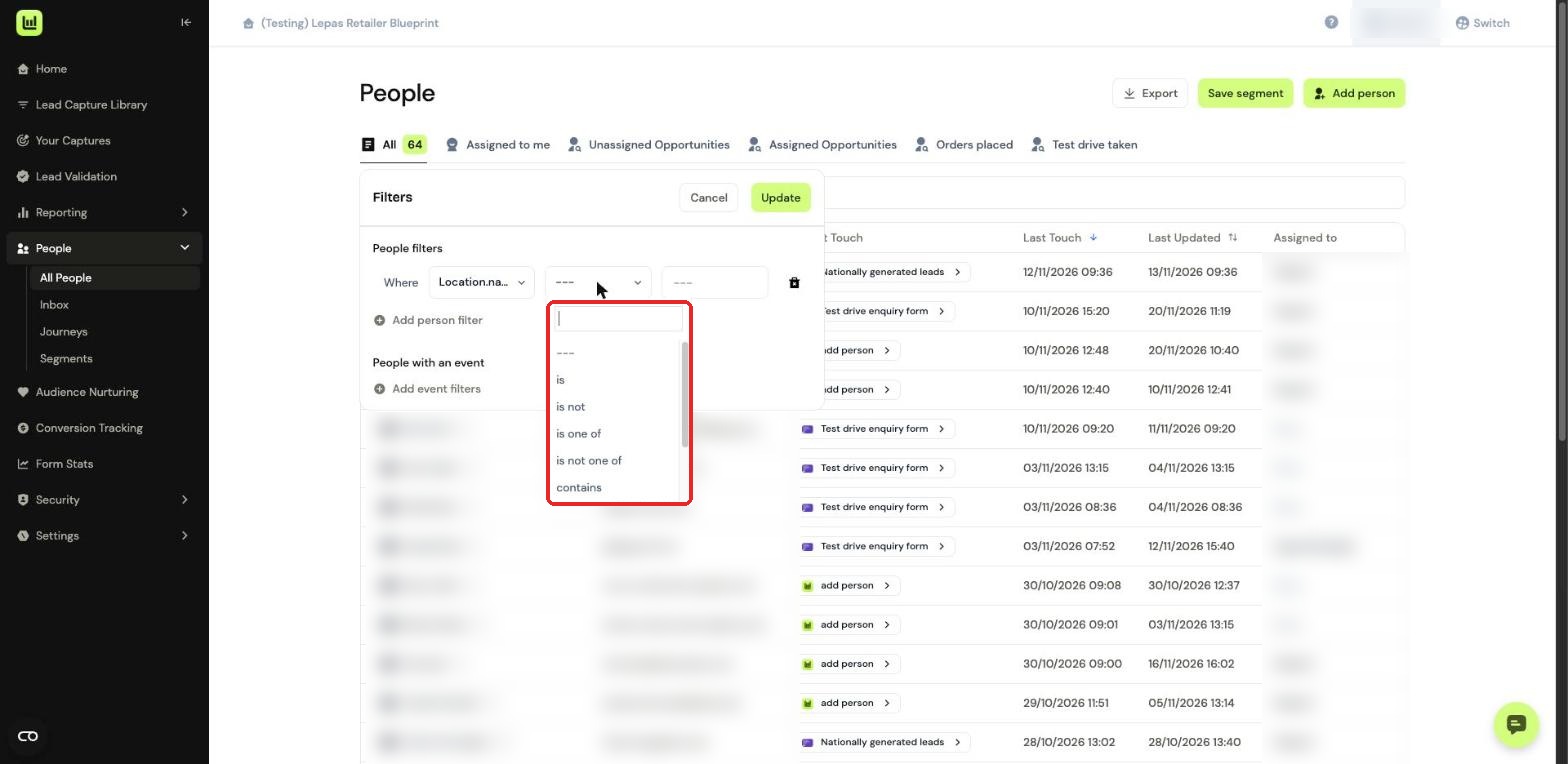
Choosing a value and applying the filter
Click the third box and choose the value. Then click Update.
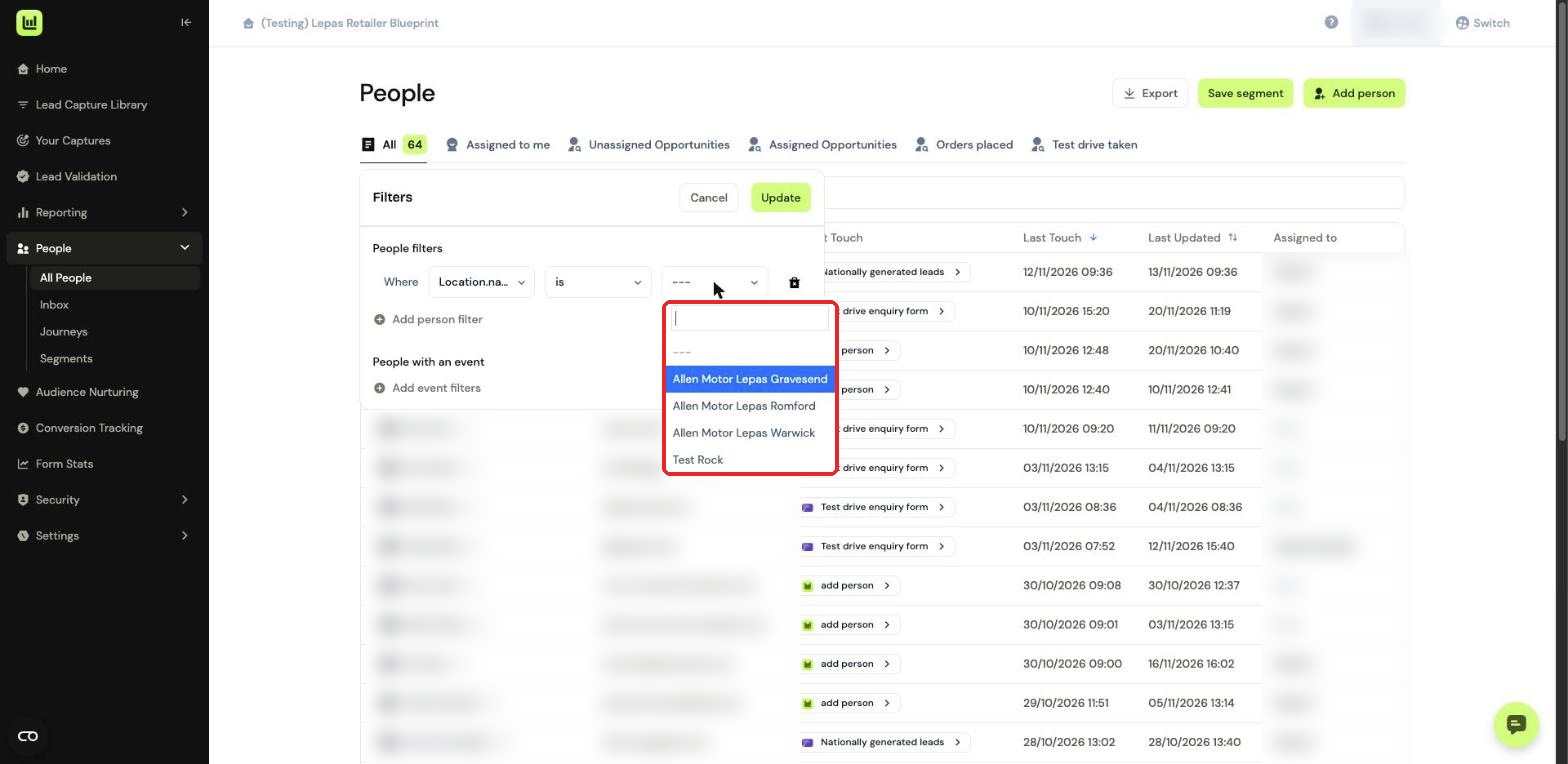
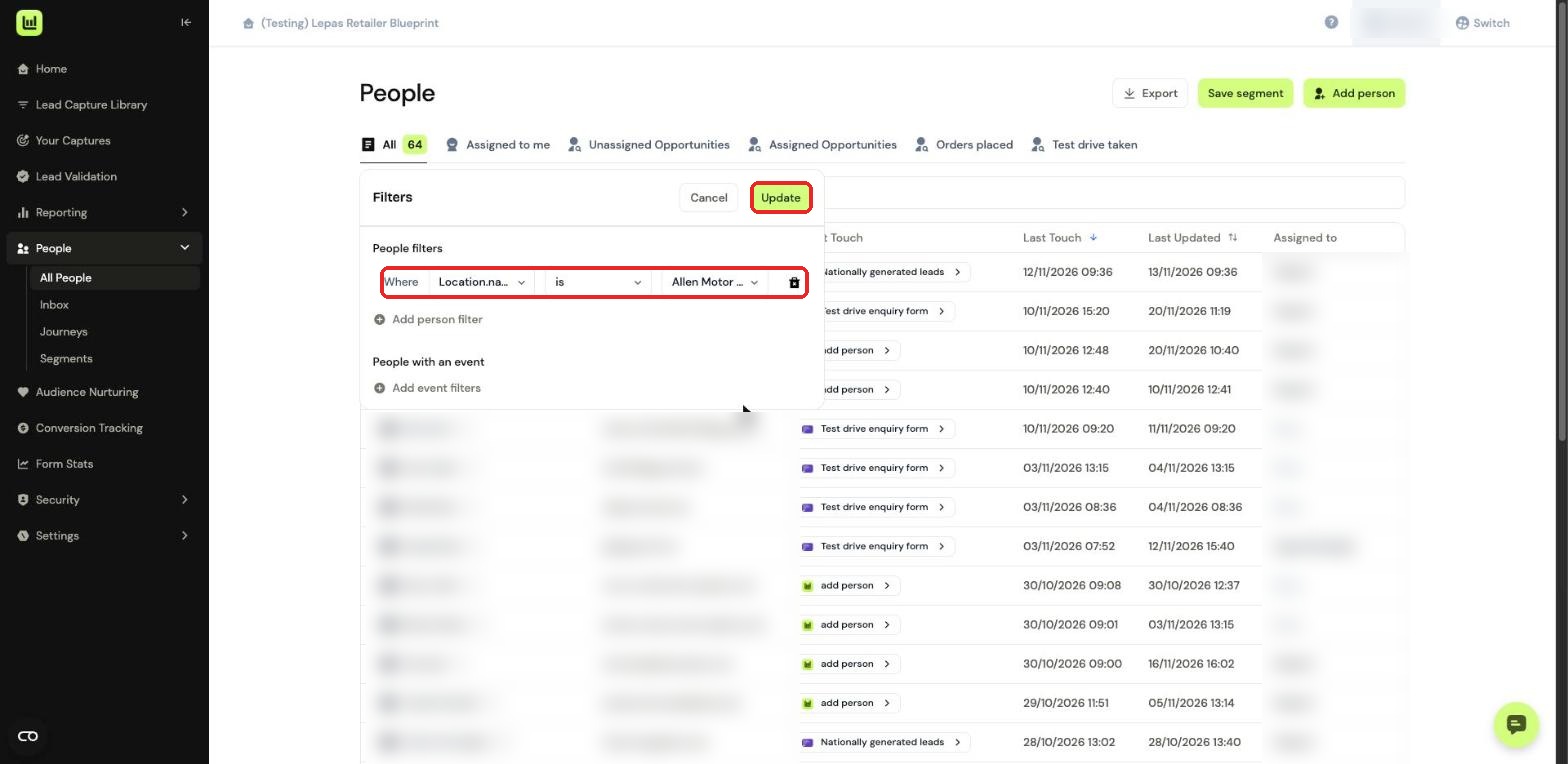
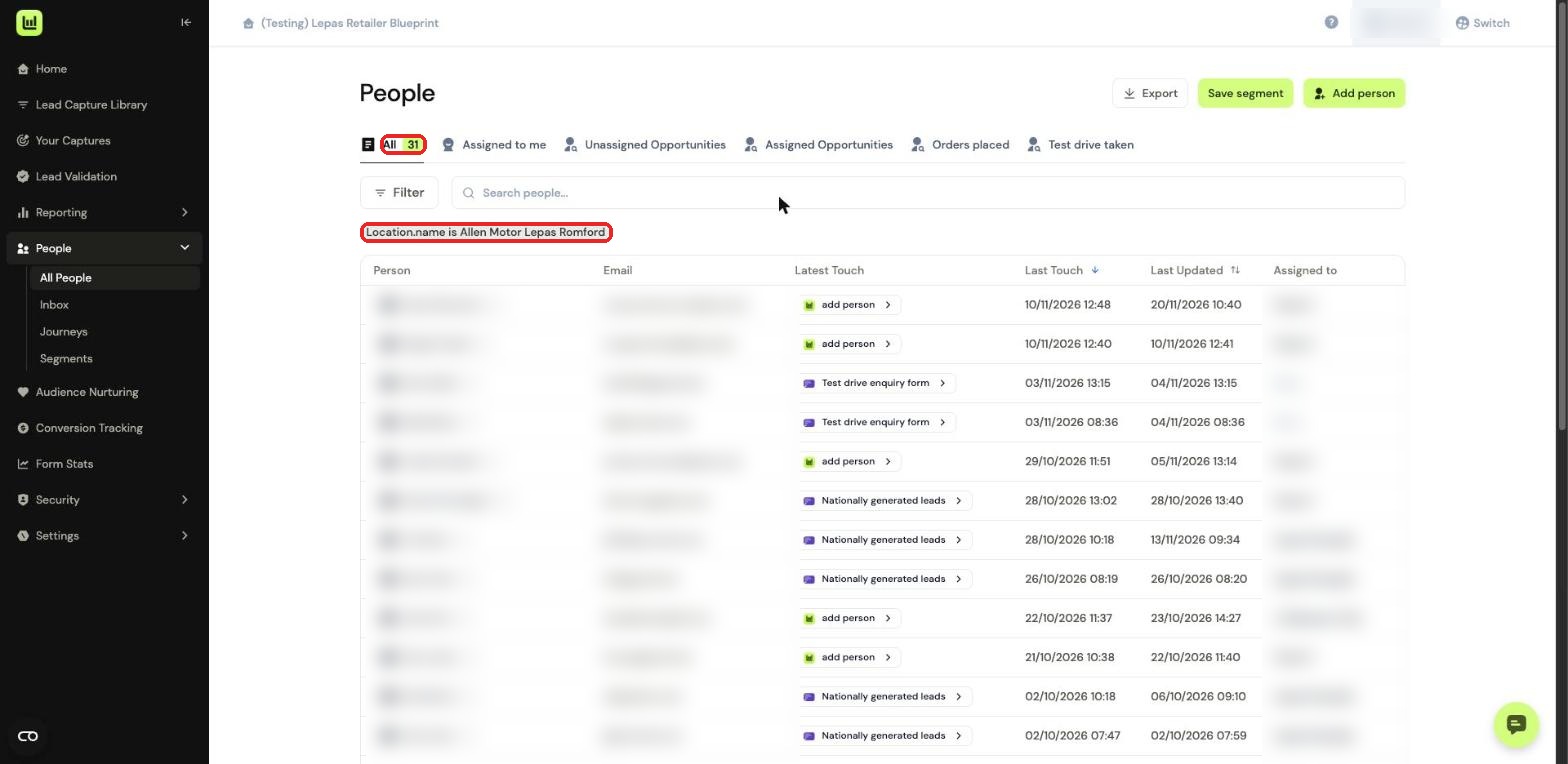
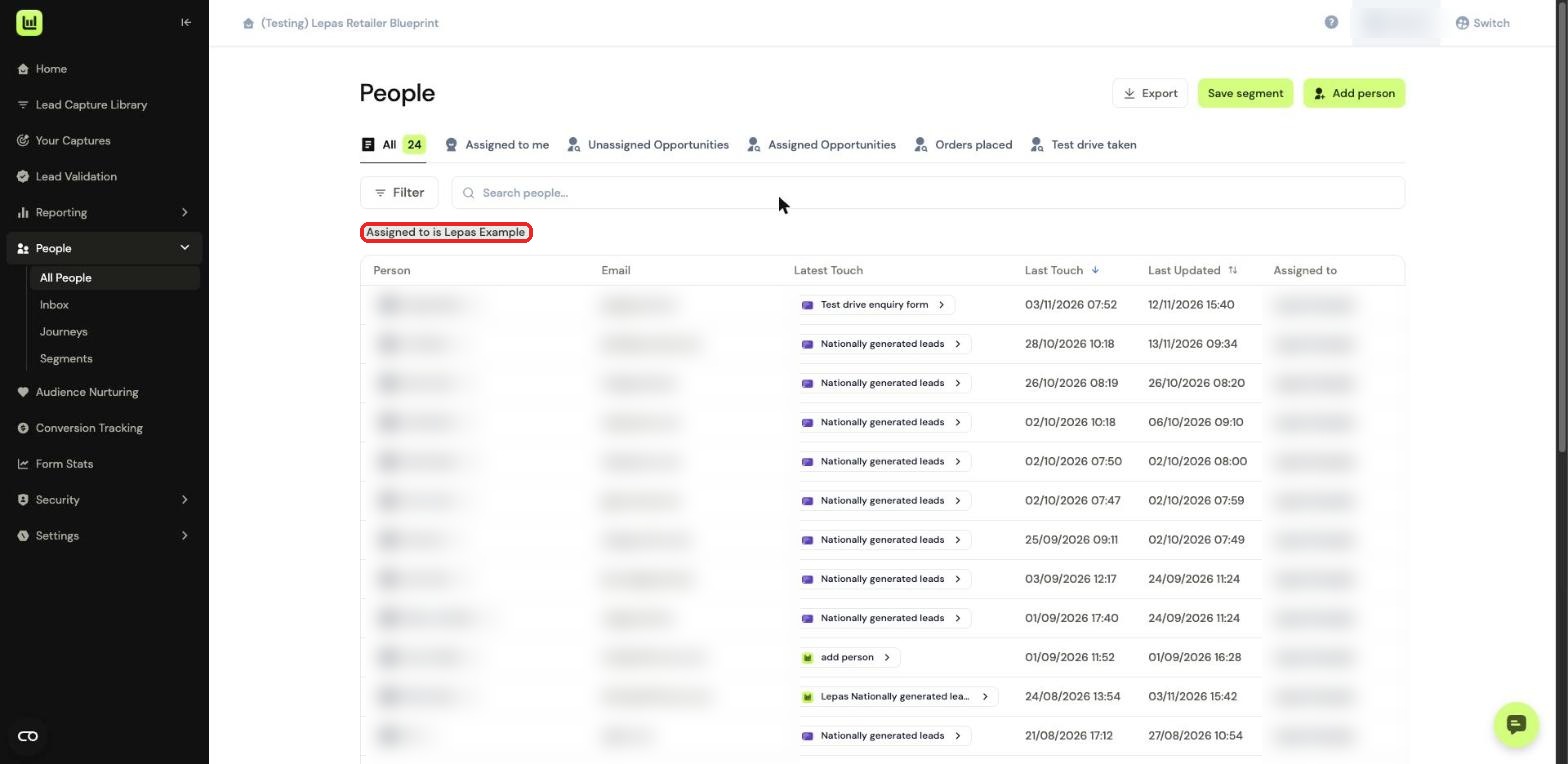
The list updates and your filter shows above it. The number on the tab shows how many customers match.
Removing a filter
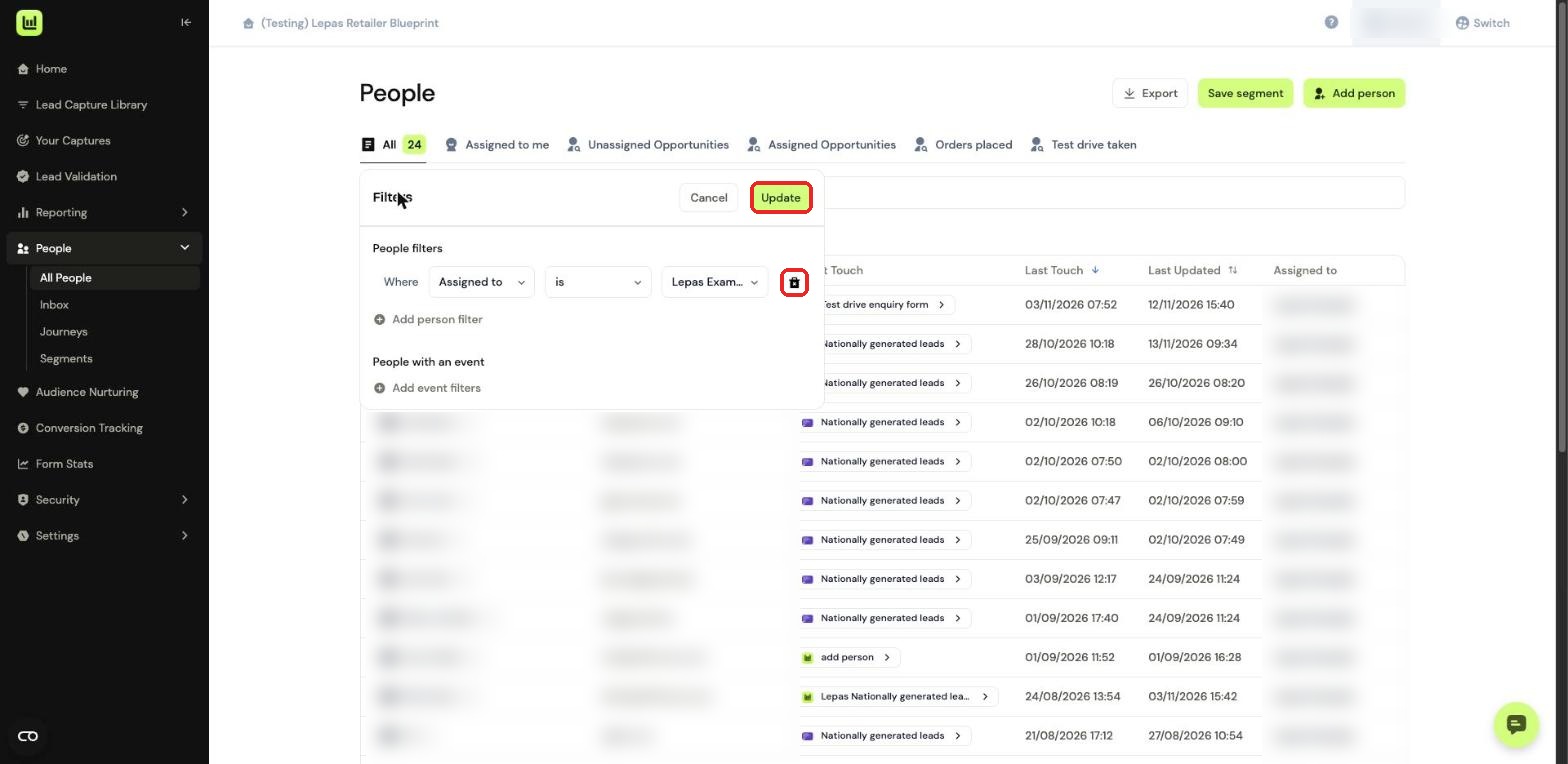
Click Filter, then the bin icon next to the filter, then Update. Clicking Cancel only closes the panel. Your filter stays on.
Common tasks
See only your site's leads
Click Filter, then Add person filter. Choose Location.name, then is, then your site, for example Allen Motor Lepas Romford. Click Update.
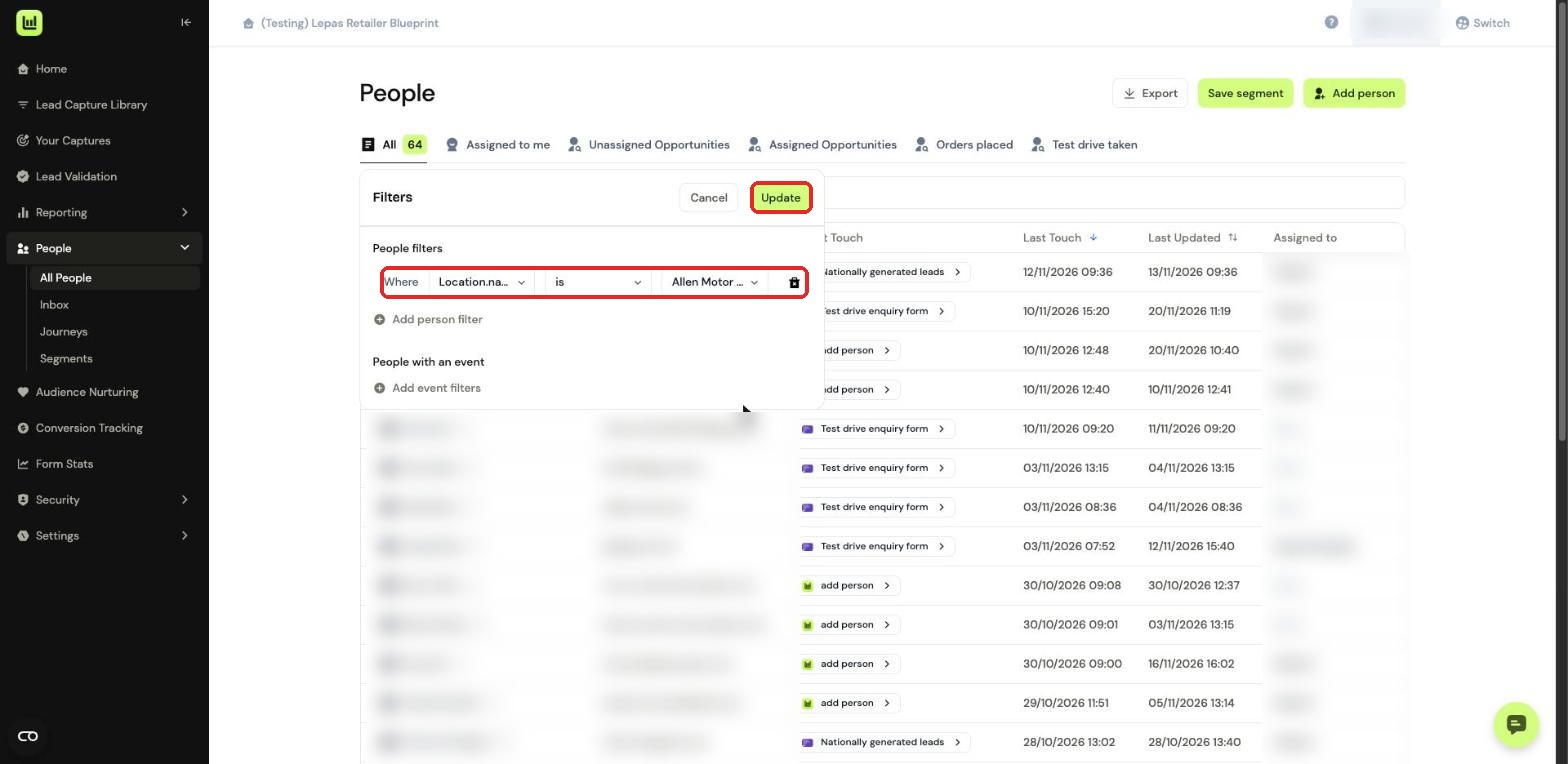
If you only know part of the site name, choose contains and type it instead, for example "Romford".
See leads assigned to you or a team member
For your own leads, click the Assigned to me tab.
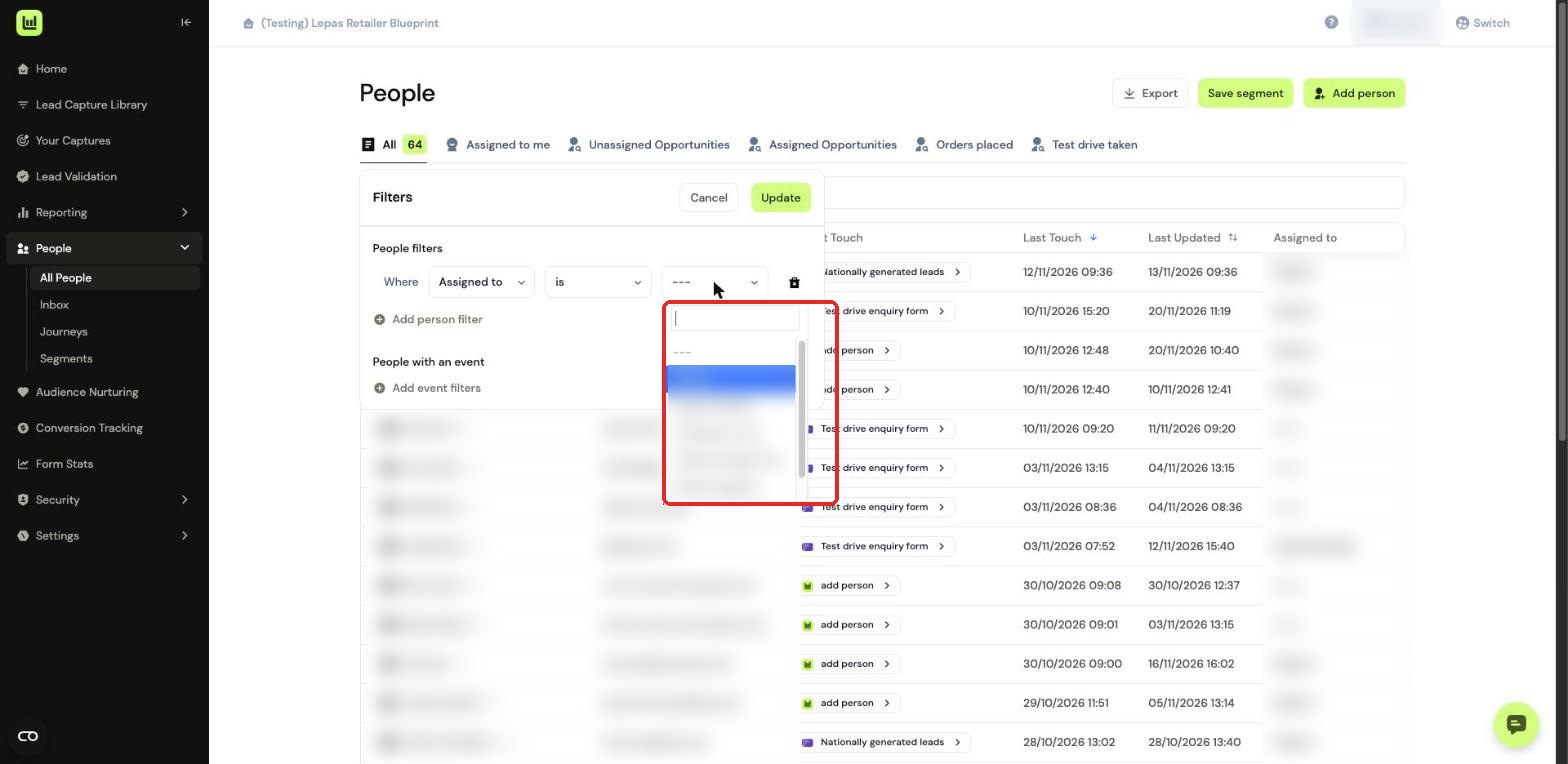
For a team member, click Filter, then Add person filter. Choose Assigned to, then is, then their name. Click Update.
Find customers who've placed an order
The quickest way is to click the Orders placed tab.
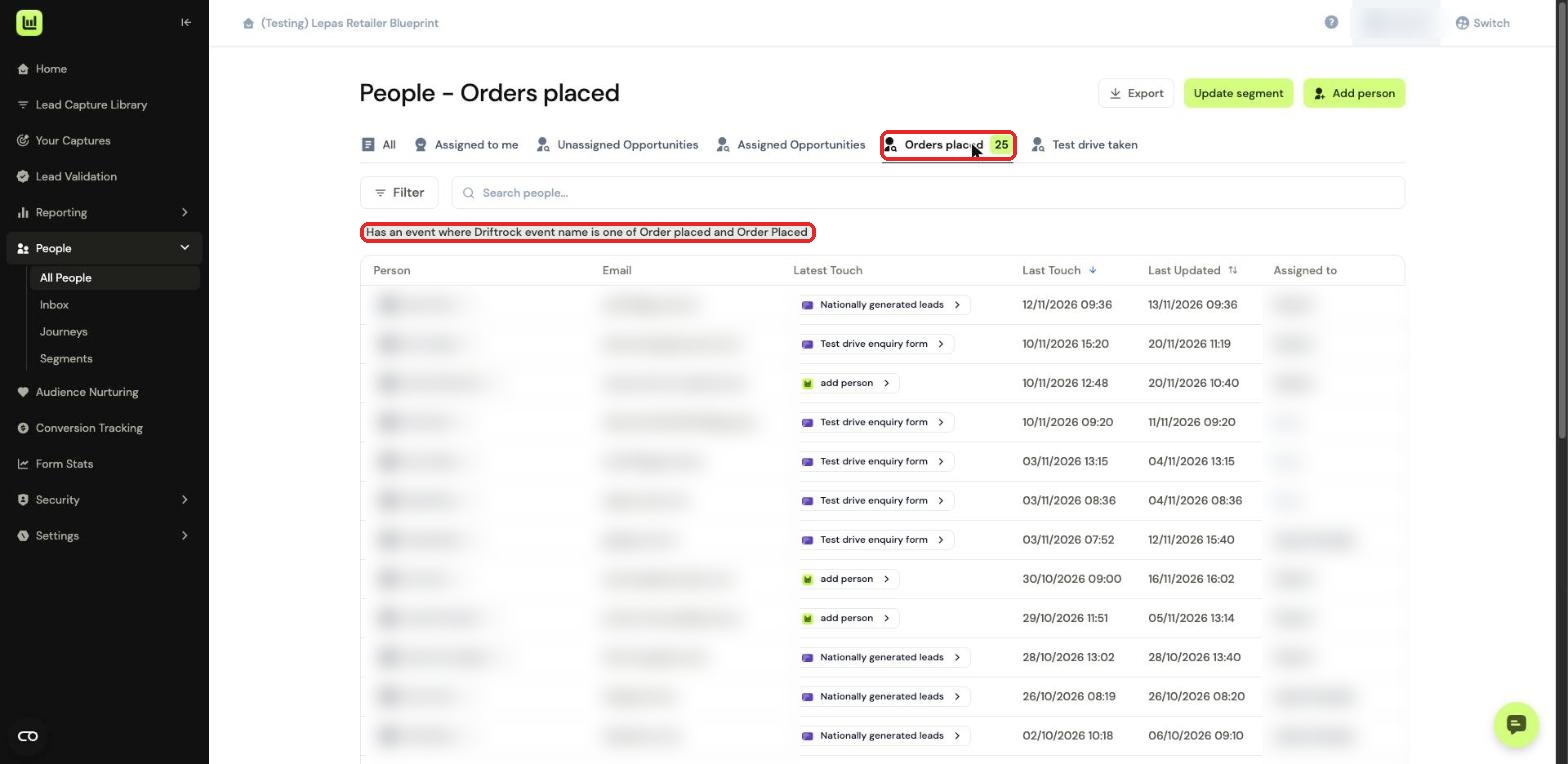
To build it yourself, for example combined with your site, click Filter, then Add event filters. Choose Driftrock event name, then is one of, then select both Order placed and Order Placed. Click Update.
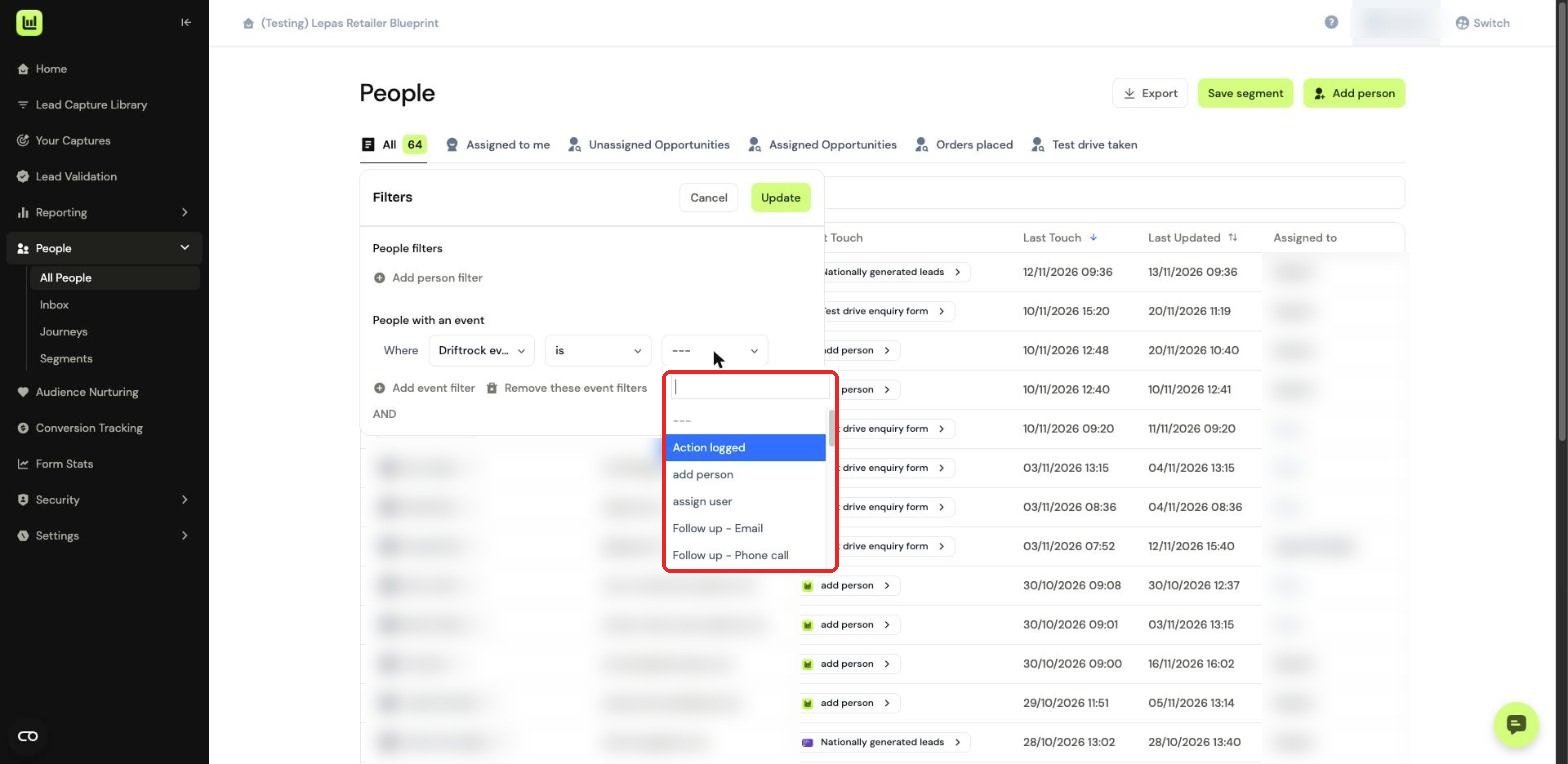
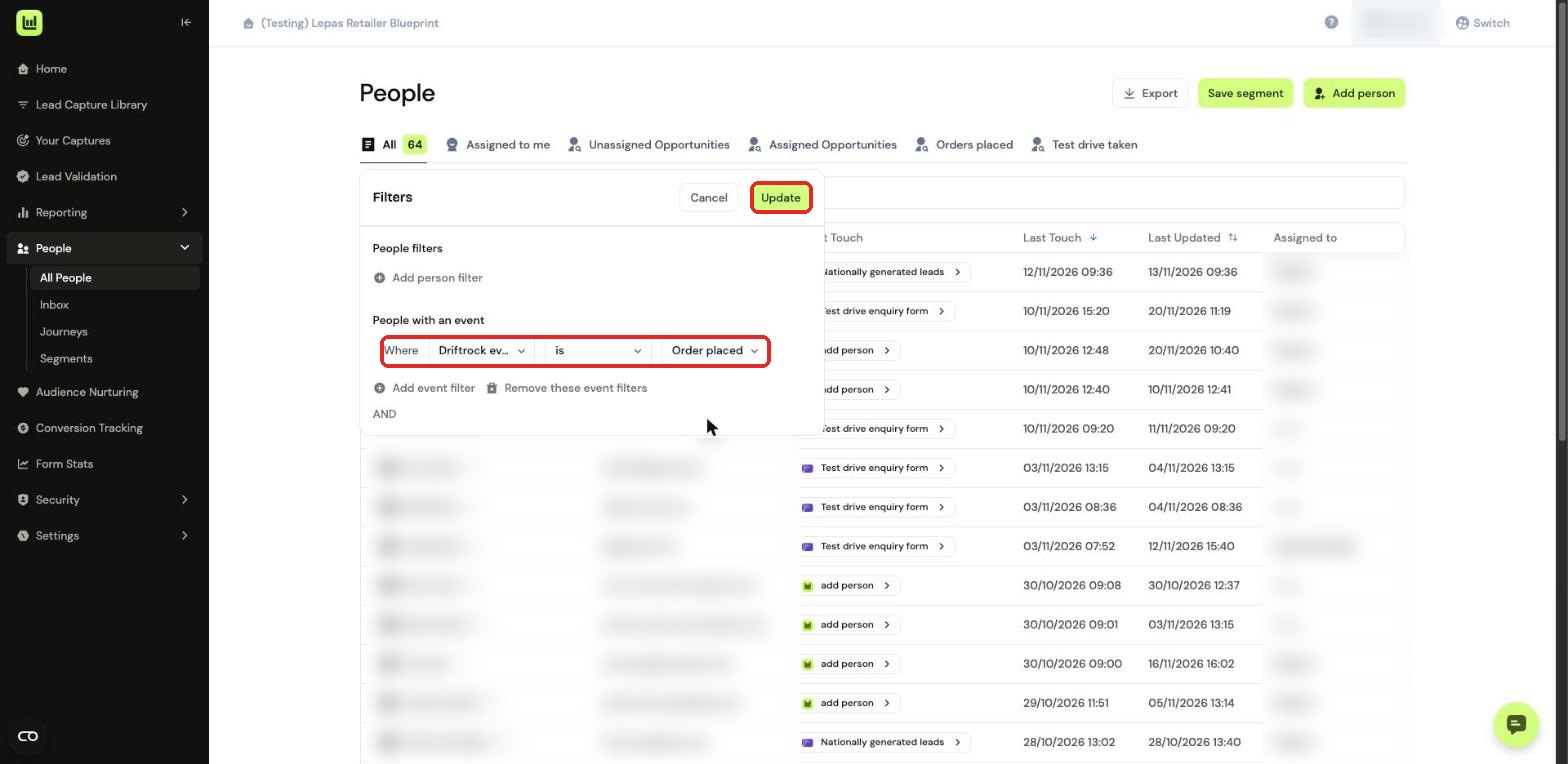
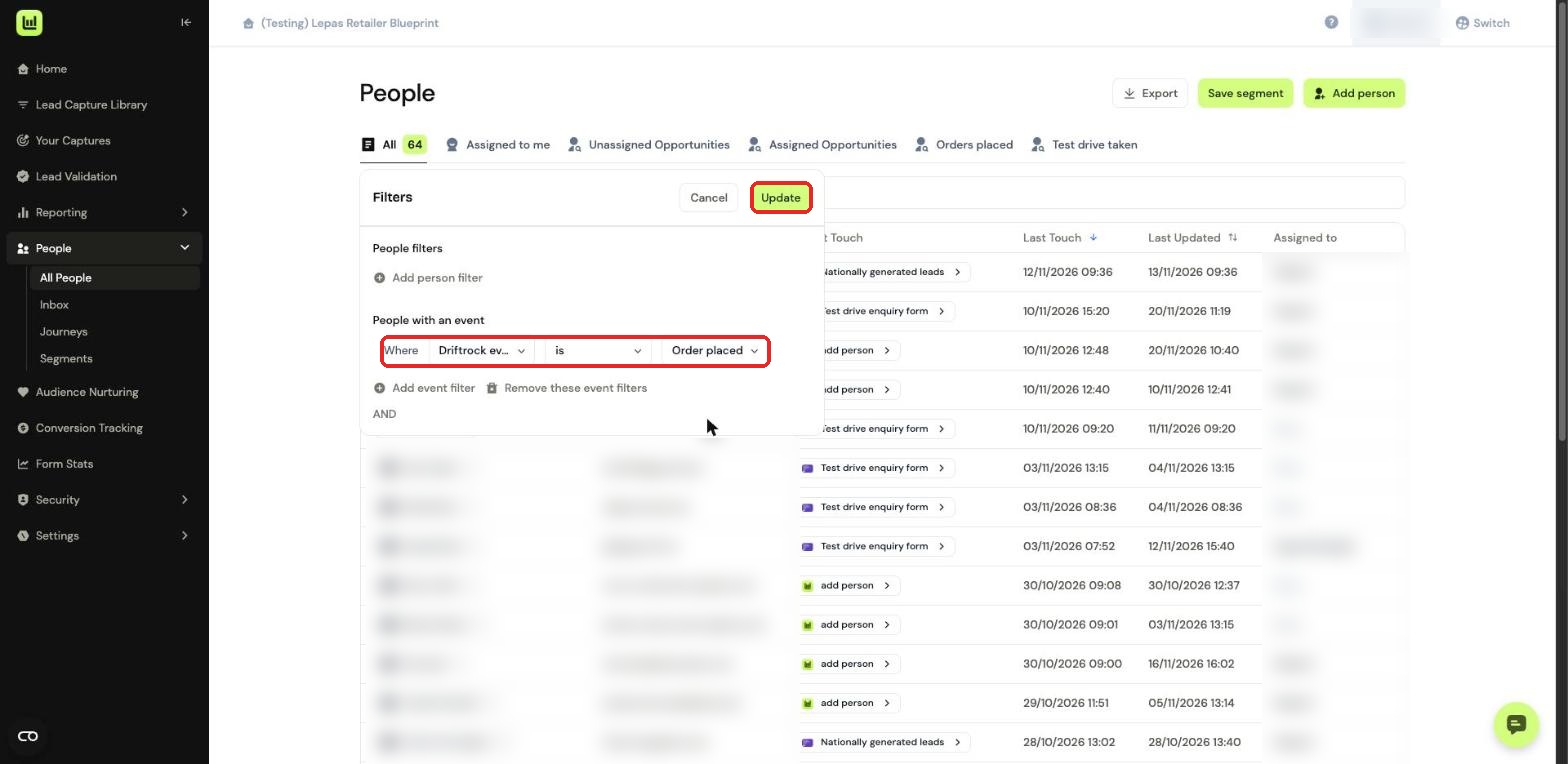
You can also use driftrock.order.status is created. It gives the same result.
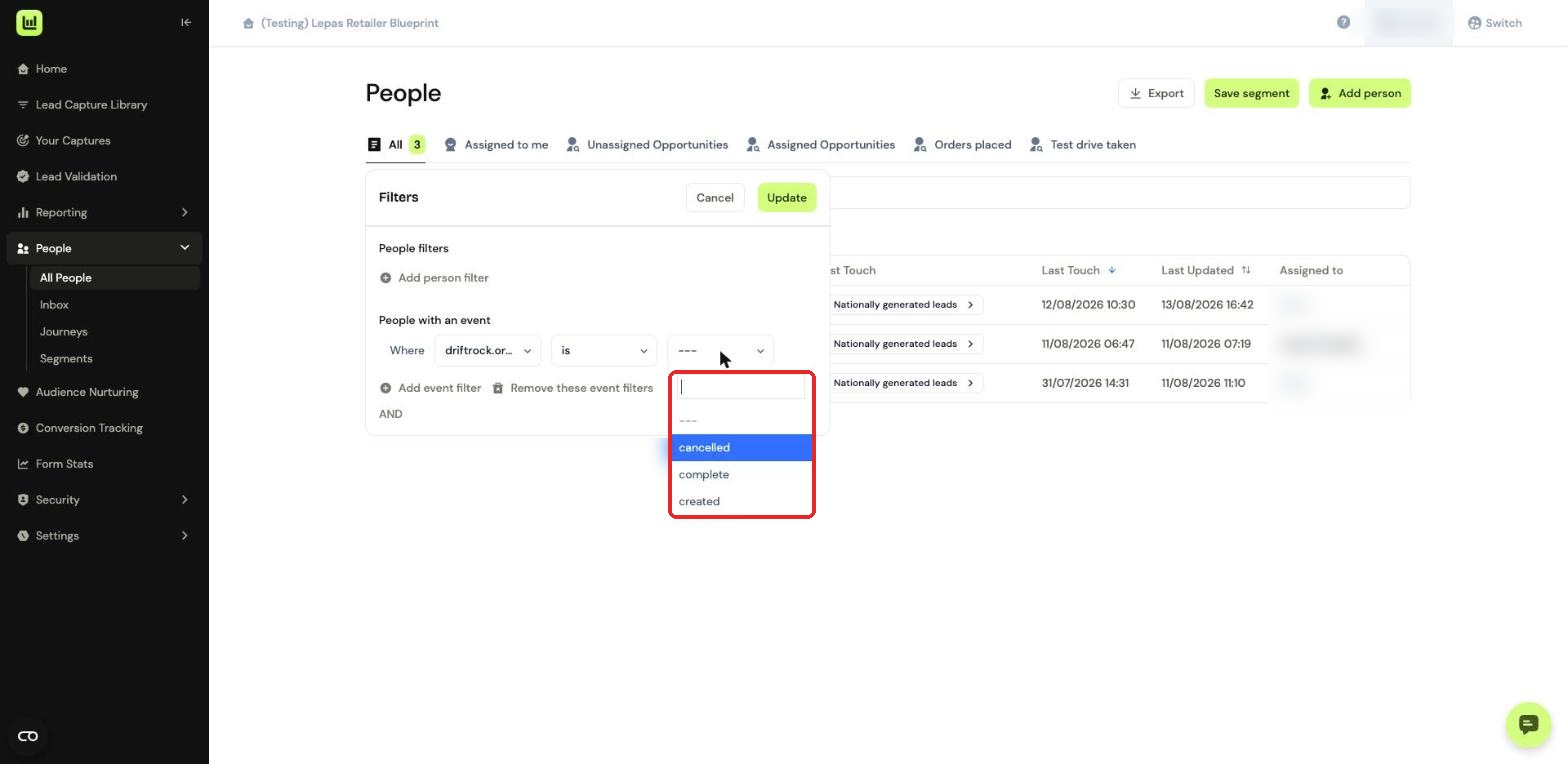
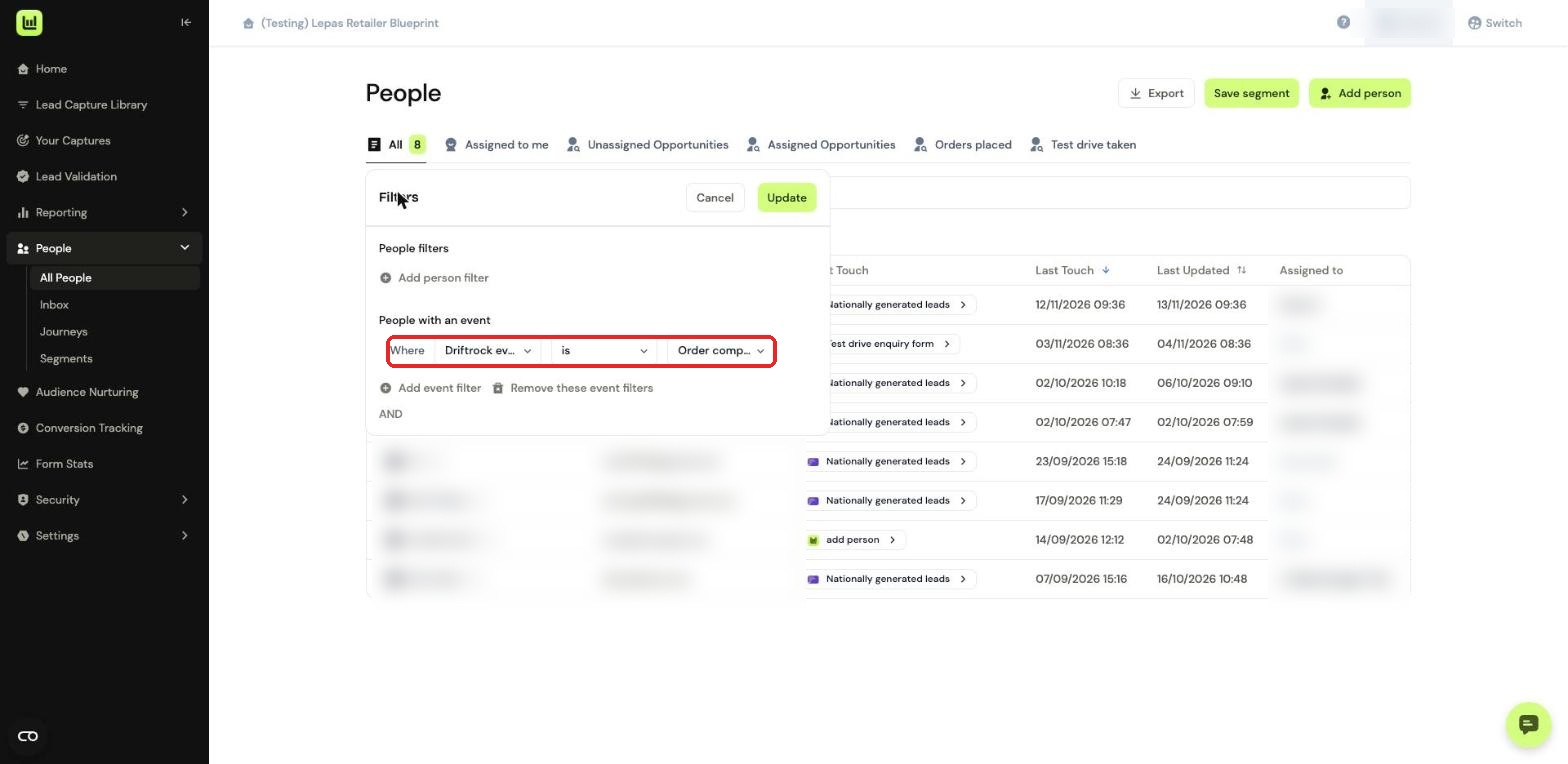
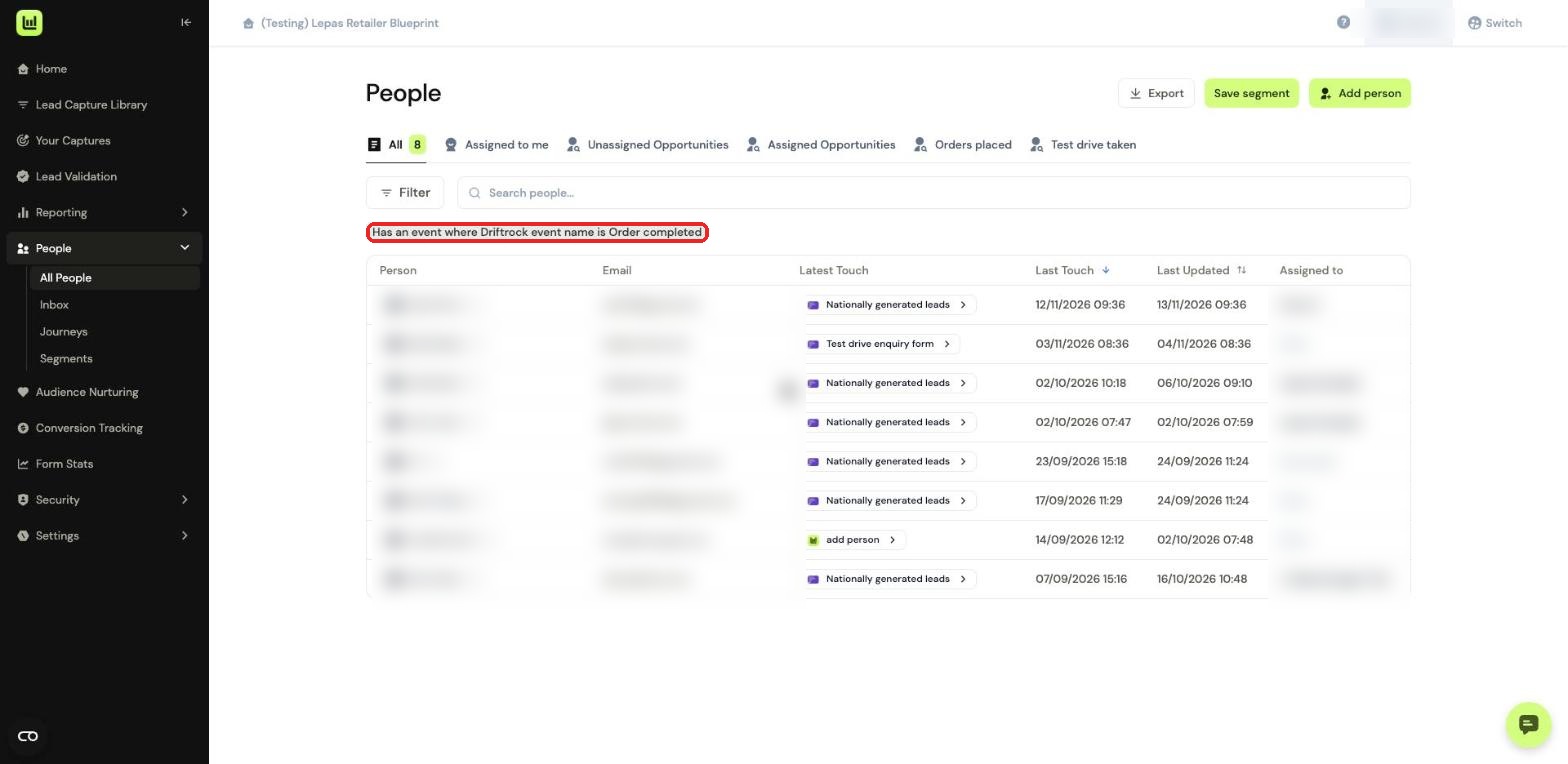
Find customers whose order is completed
Click Filter, then Add event filters. Choose Driftrock event name, then is, then Order completed. Click Update.
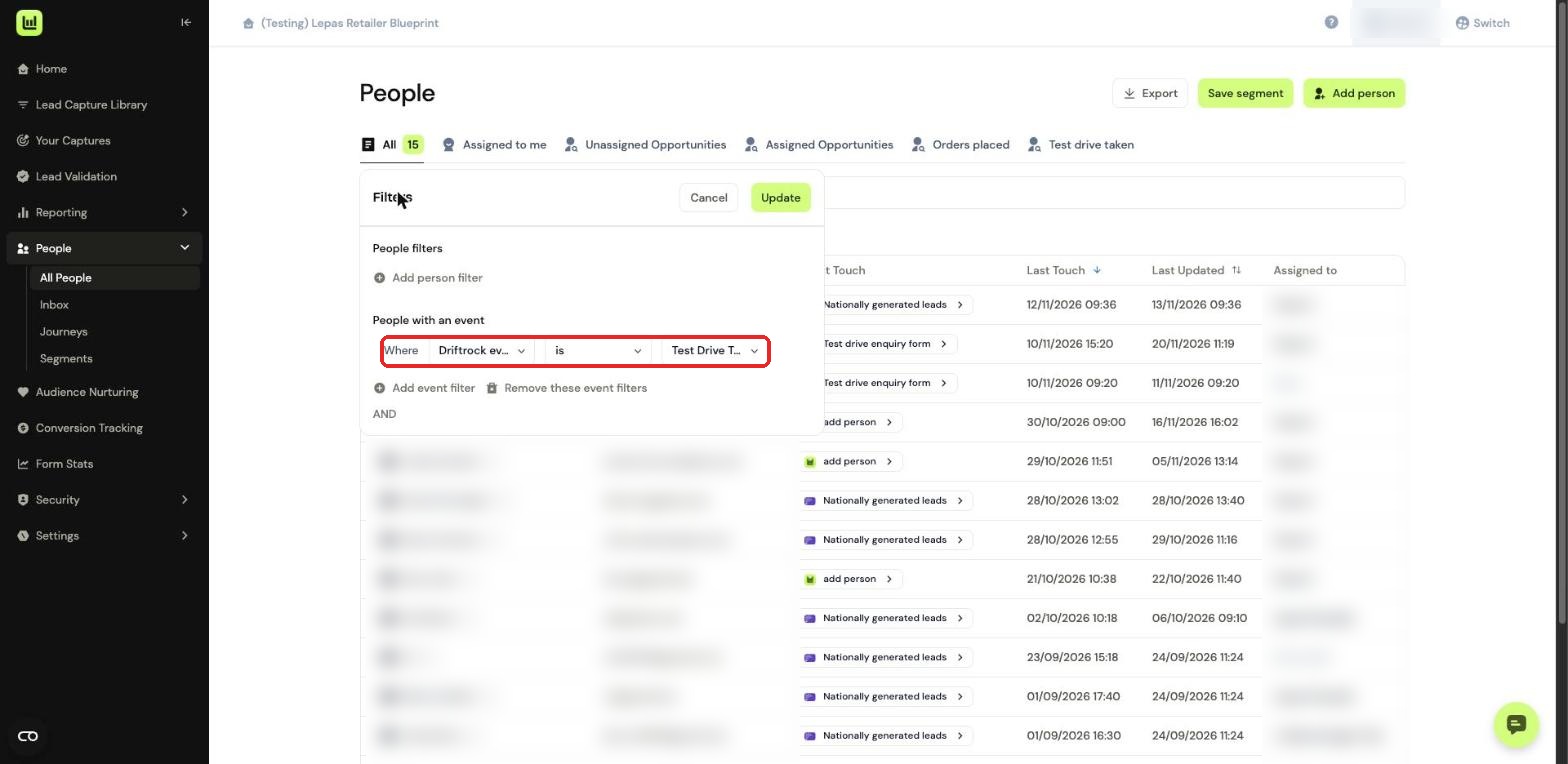
Find customers who've taken a test drive
To build it yourself, choose Driftrock event name, then is, then Test Drive Taken. Click Update.
Find lost sales
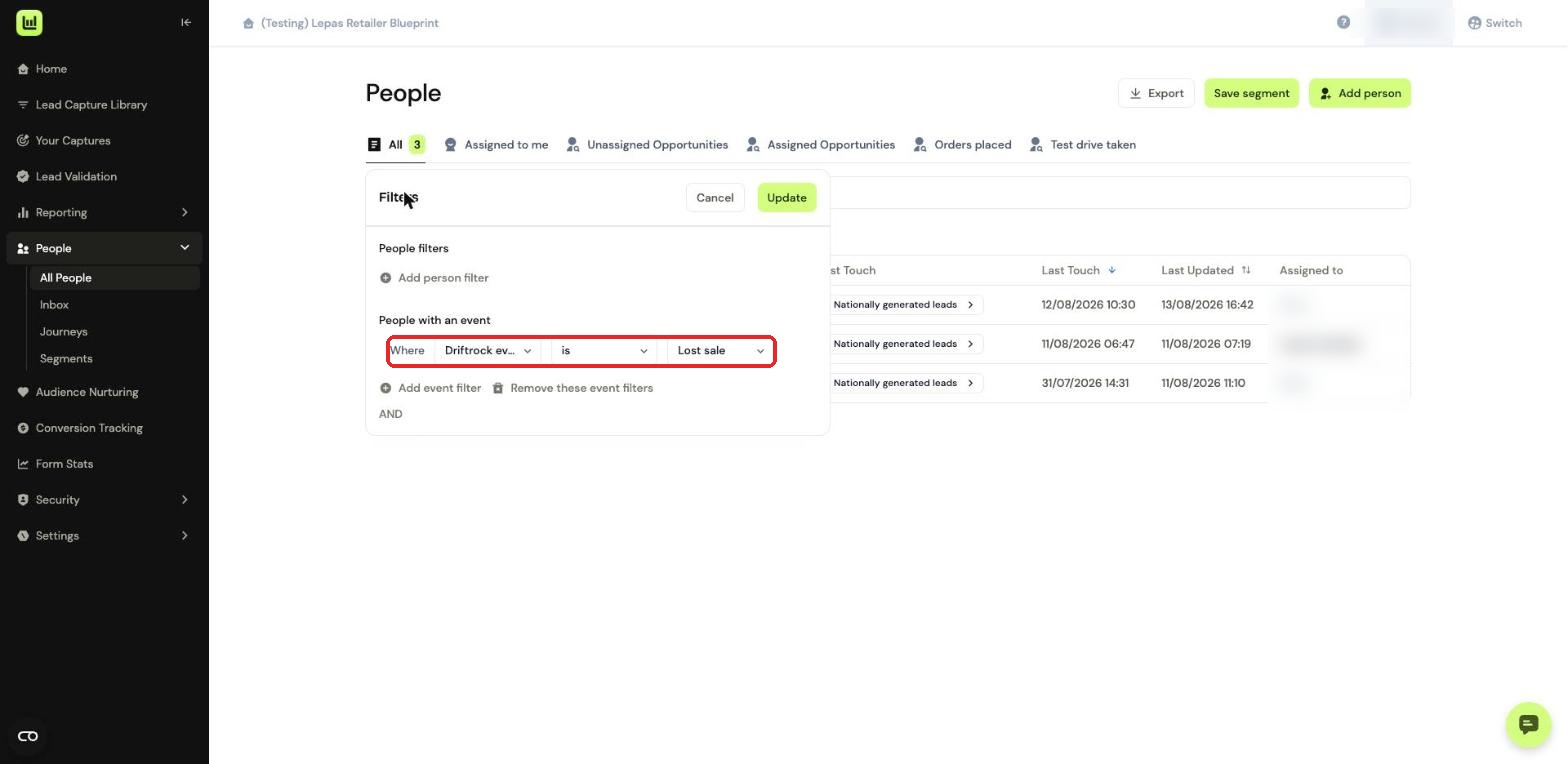
Click Filter, then Add event filters. Choose Driftrock event name, then is, then Lost sale. Click Update.
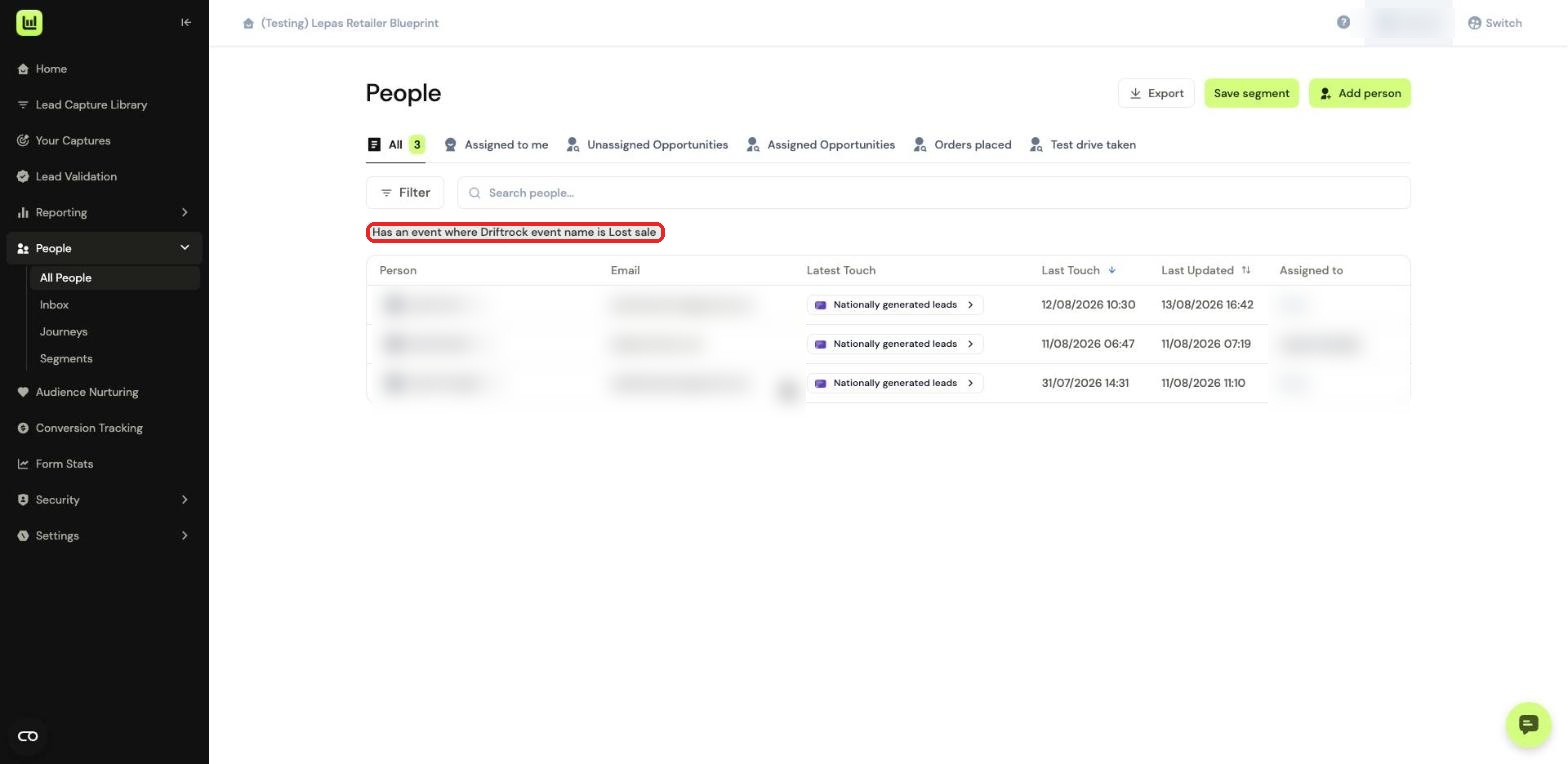
To see why sales were lost, add a person filter for Lost sale reason.
Combining filters
You can add more than one filter. For example, add a person filter for your site and an event filter for Order placed to see orders at your site only. Customers must match every filter to appear.
See the most recent activity
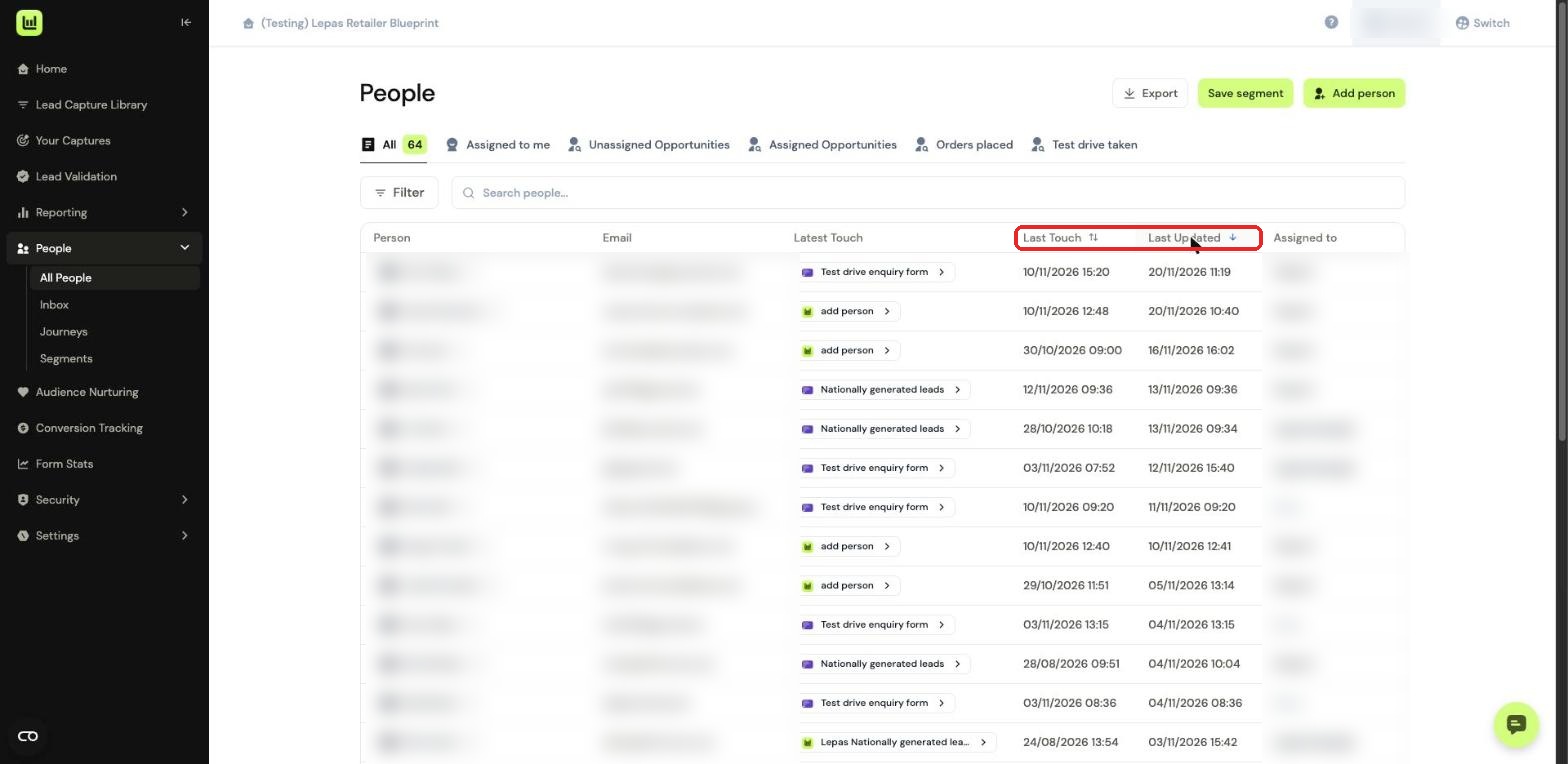
Click a column heading to sort the list:
Last Touch – when the lead most recently came into Driftrock.
Last Updated – when someone last logged an action on the lead.
Sort by Last Updated to see which leads your team has worked on most recently.
Tip: Want a quick view of orders without filtering each time? Ask your Driftrock contact to set up a location dashboard for you under Reporting.
Filter glossary
The field list is long, and many labels are named after how Driftrock is set up behind the scenes. These are the ones you'll use most.
Location and team
Filter label as shown in Driftrock | What it means | When you'd use it |
|---|---|---|
Location.name | The site the lead belongs to | See one site's leads |
Location.group name | The dealer group the site belongs to | See leads across your group |
Location.postal code | The site's postcode | Find a site by postcode |
Assigned to | The team member the lead is assigned to | See one person's leads |
Triggered by | The team member who logged an action | See who did what |
Events (things that happened to the customer)
Use these with Add event filters, choosing Driftrock event name.
Filter label as shown in Driftrock | What it means | When you'd use it |
|---|---|---|
Driftrock event name | What happened to the customer. Choose the event from the list below | Find customers by an action or outcome |
Order placed / Order Placed | An order was logged with Place Order. Select both with is one of | Find customers who've ordered |
Order completed | The order was marked as completed | Find handed-over sales |
Order cancelled / Order Cancelled | The order was cancelled | Find cancelled orders |
order change | The order was edited | Check changes to orders |
Test Drive Taken | A test drive was logged with Custom actions | Find customers who've test driven |
Lost sale | The lead was closed as lost | Find lost sales |
Log an action | Contact was logged, for example a phone call | Check follow-up activity |
Respond to Enquiry (Email) | An email reply was sent from Driftrock | Check email responses |
Follow up - Email / Follow up - Phone call | A follow-up was logged | Check follow-ups |
assign user / Re-assign User | The lead was assigned or reassigned | Check who picked up leads |
add person | The lead was added manually with Add person | Find walk-ins and phone enquiries |
Lead submitted / Lead received | The lead came in from a form or another system | Find new enquiries |
Update contact details | The customer's details were changed | Check corrections |
Orders and sales
Filter label as shown in Driftrock | What it means | When you'd use it |
|---|---|---|
driftrock.order.status | Where the order is: created, complete or cancelled | Find orders at a certain stage |
driftrock.order.cancel_reason / order cancelled reason | Why an order was cancelled | Spot common cancellation reasons |
order handover date | When the car is handed over | Plan handovers |
Lost sale reason | Why a sale was lost | Spot common reasons for lost sales |
Purchase type | How the customer is buying, for example cash or finance | Split orders by purchase type |
Finance method / Finance interest | Finance details given by the customer | Find finance customers |
Part exchange, PX Make, PX Model | Whether the customer has a part exchange, and the car | Find part-exchange customers |
VIN, Registration number, vrm | The car's identification and registration | Find a specific car |
Dates and activity
Filter label as shown in Driftrock | What it means | When you'd use it |
|---|---|---|
Last Touch (column) | When the lead most recently came into Driftrock | See the newest enquiries |
Last Updated (column) | When an action was last logged on the lead | See recent team activity |
First touch: timestamp / Last touch: timestamp | The date of the customer's first and latest enquiry | Find leads from a set period |
Time to purchase / Time to test drive | When the customer said they want to buy or test drive | Prioritise hot leads |
Booking slot time | The test drive slot the customer booked | Plan test drives |
Test drive ready | Whether the customer is ready for a test drive | Find customers to book in |
Lead source and customer details
Filter label as shown in Driftrock | What it means | When you'd use it |
|---|---|---|
lead source | Where the customer came from, chosen in Add person (for example walk_in) | See walk-ins or phone enquiries |
First touch: source / Last touch: source | Where the customer's first and latest enquiry came from | Compare where leads come from |
Last touch: marketing_campaign | The campaign behind the latest enquiry | See which campaigns bring leads |
Contact method / Contact time | How and when the customer wants to be contacted | Contact customers the way they prefer |
First name, Last name, Full name, Email, Phone number | The customer's details | Find a specific customer (the Search people... box is quicker) |
Postal code, City | The customer's address | Find customers in an area |
add person notes, walk in notes, phone call notes, Logged Action Notes | Notes your team added | Use is empty to find leads without notes |
Other fields in the list, such as system references, are mainly used by Driftrock. You won't normally need them. If you're unsure about a field, ask your Driftrock contact