Updating a customer’s details: Step by step guide
If a customer’s details have been entered incorrectly or have changed, you can update them in Driftrock. Keeping details accurate means your team always contacts the right person.
Opening the customer’s record
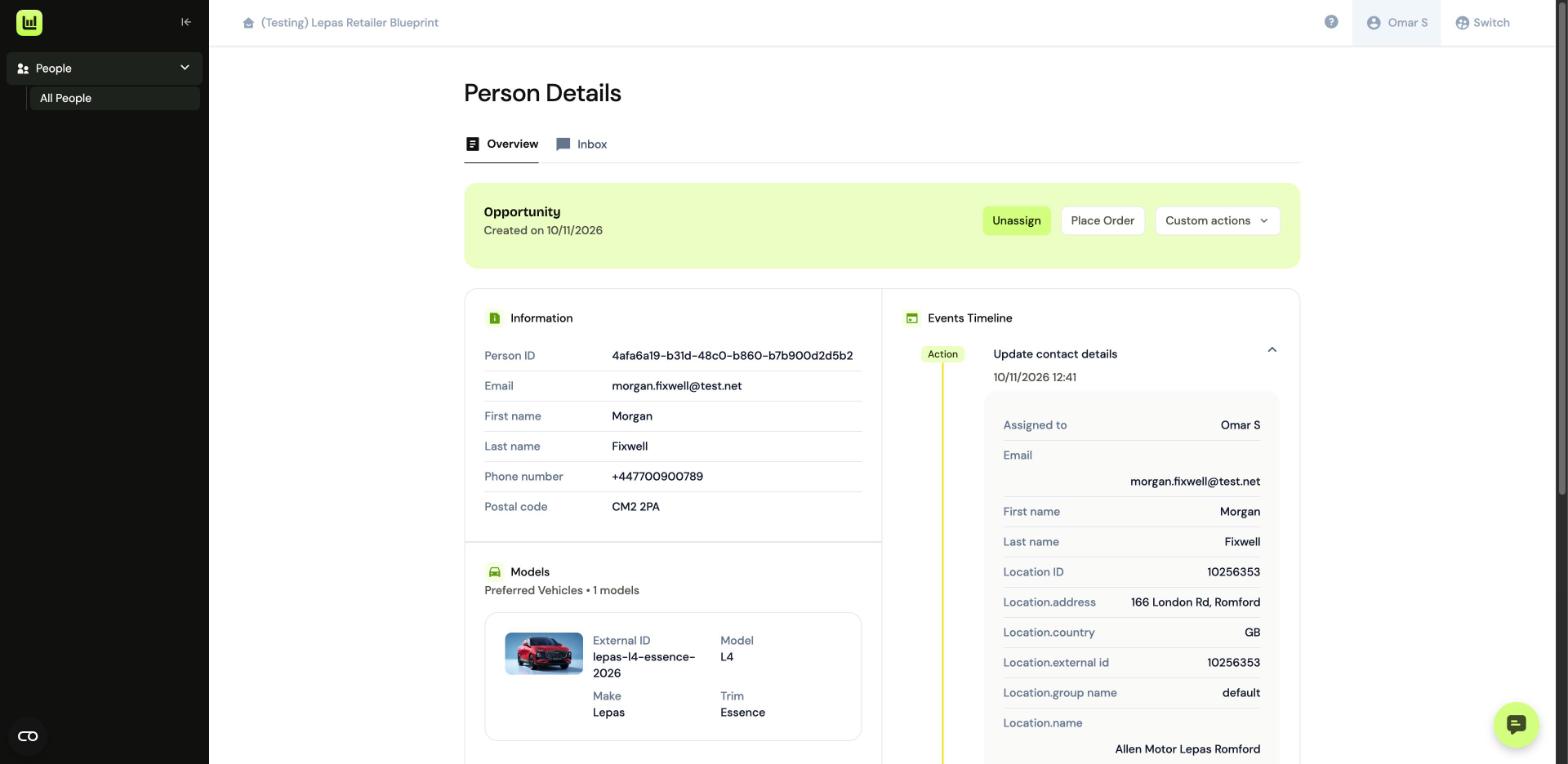
Go to People and click the customer’s name to open their Person Details. Check the details under Information.
Choosing Update contact details
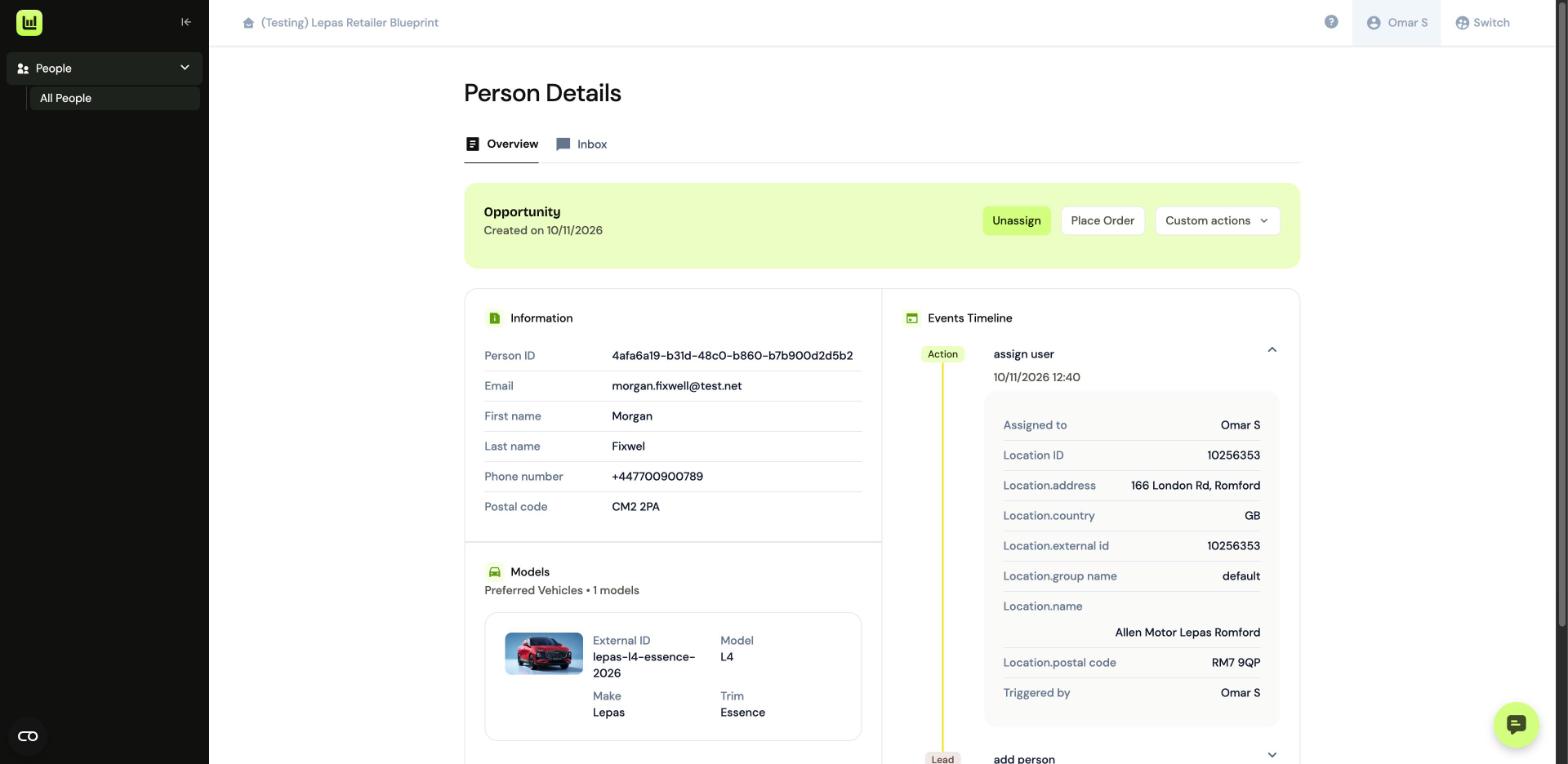
Click Custom actions, then Update contact details.
Editing the details
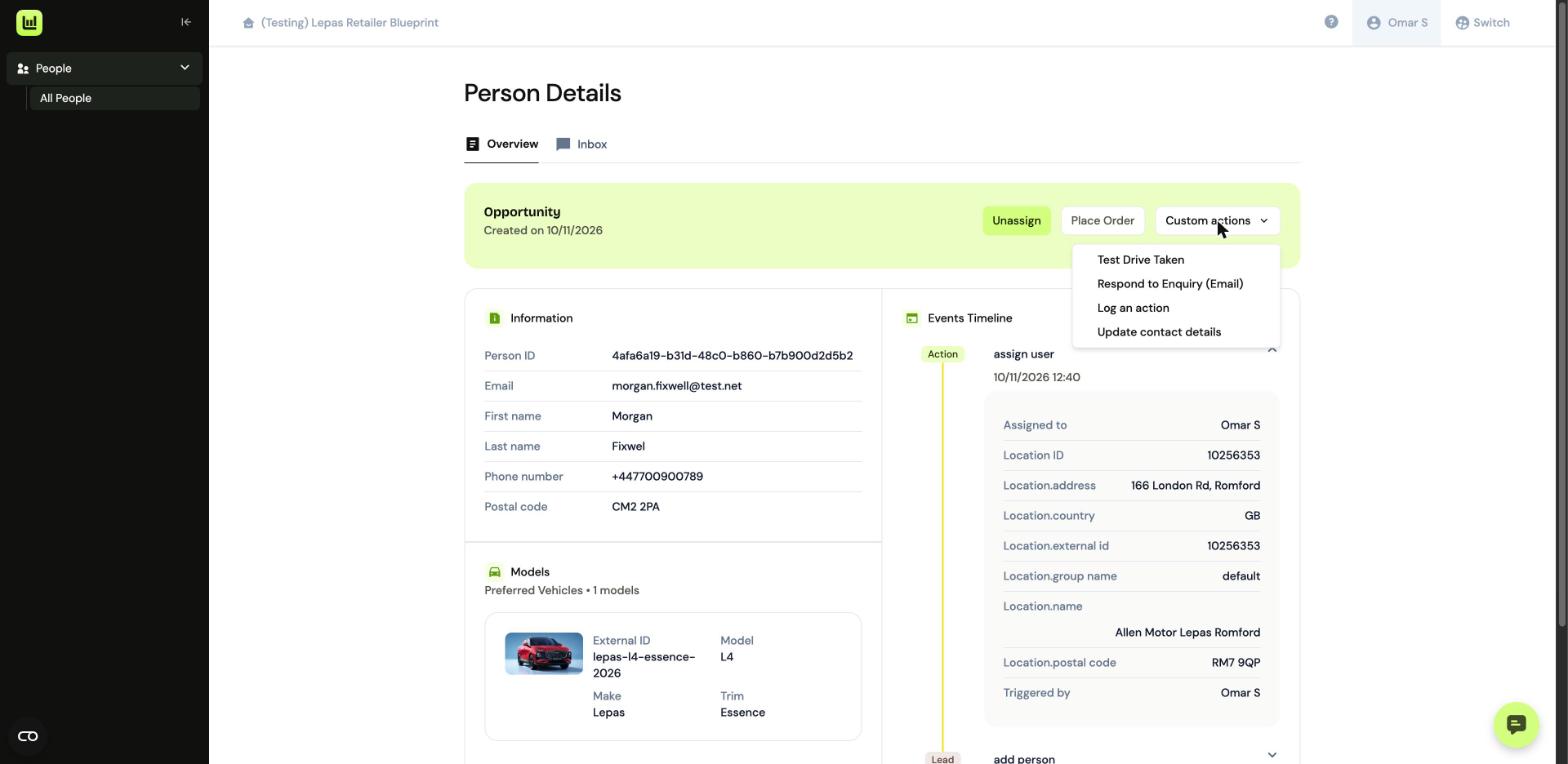
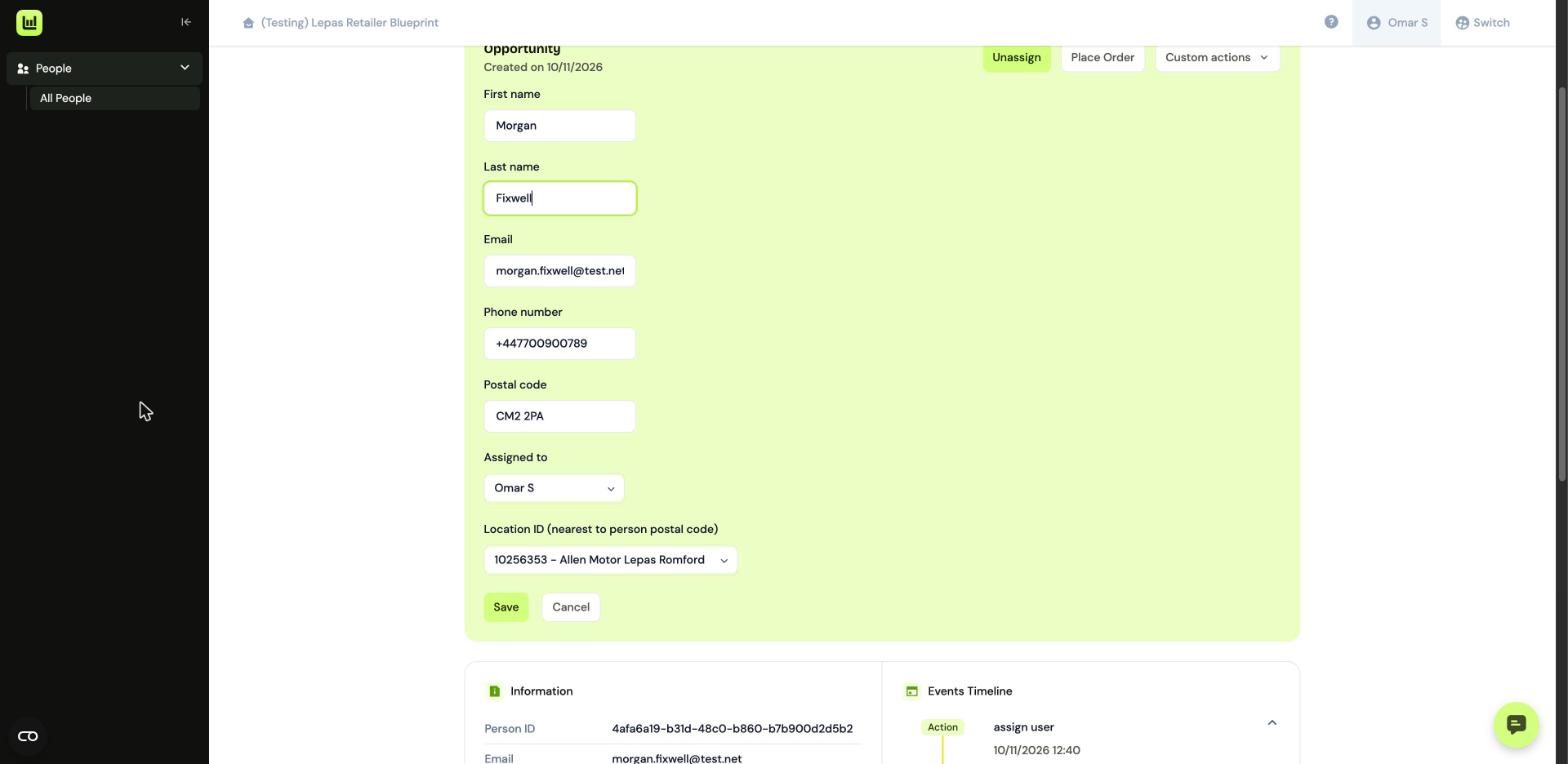
A form opens with the customer’s current details already filled in. You can update:
First name
Last name
Email
Phone number
Postal code
The form also shows Assigned to and Location ID. Leave these as they are, unless you also need to change who the customer is assigned to or which location they belong to.
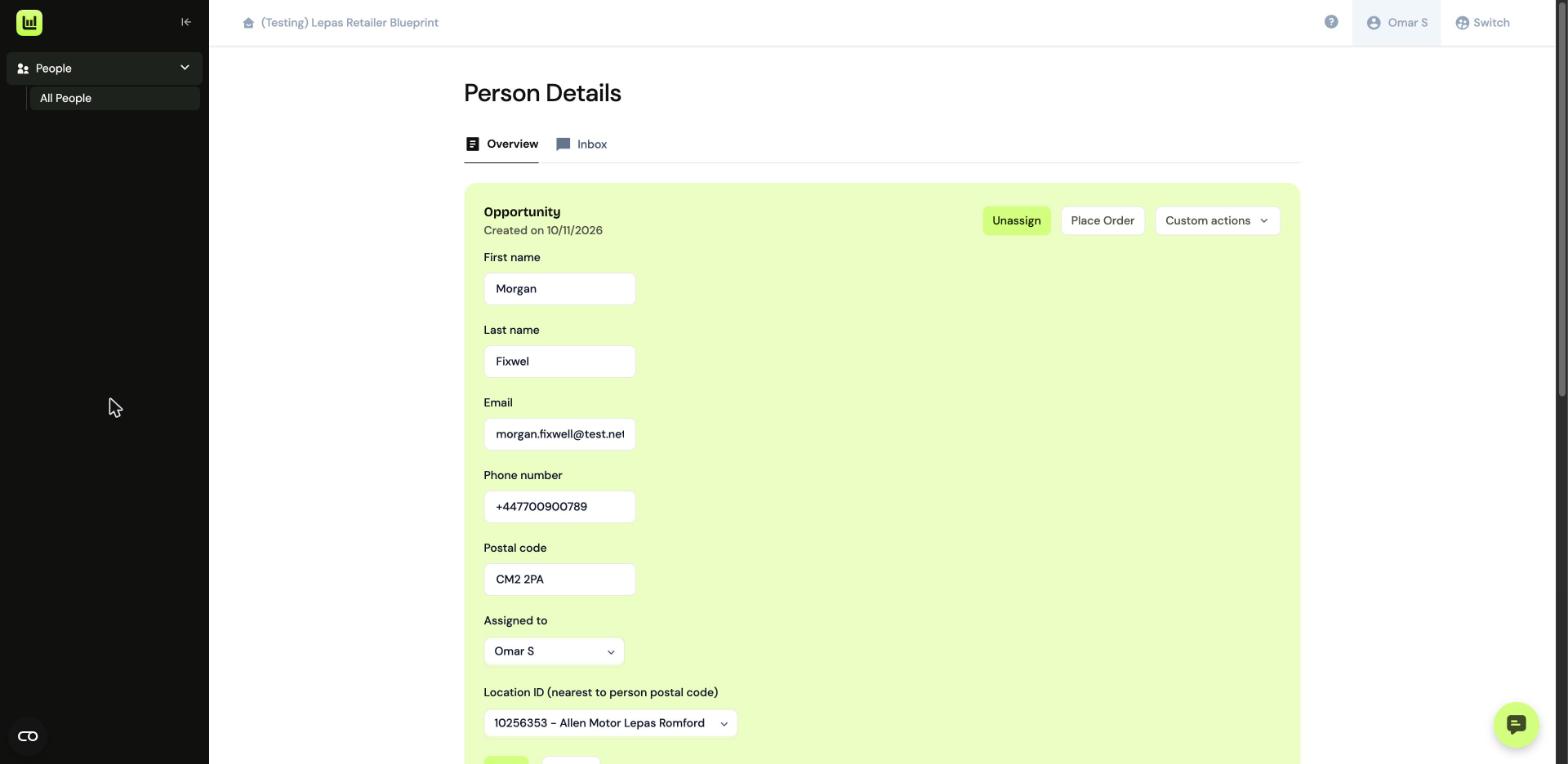
Change the details that need correcting, then click Save.
Checking the update
The customer’s Information now shows the updated details. The change is also recorded on the Events Timeline as Update contact details, so your team can see what was changed and when.