
Connecting Amazon Lead Ads to Driftrock
Amazon Lead Ads
If you run lead generation campaigns on Amazon, Driftrock can receive leads from your Amazon lead forms and send them on to your CRM and other Destinations. This guide explains how the connection works and how to set it up.
What is the Amazon Lead Ads Capture?
Amazon Lead Ads let people register their interest through a lead form hosted on Amazon, usually on a brand's Amazon Store page. The form is created and managed in Amazon's lead manager.
The Amazon Lead Ads Capture connects that form to your Driftrock account. Each time someone submits the form, Amazon sends the lead to Driftrock, where it is processed in the same way as leads from your other Captures.
Why use the Amazon Lead Ads Capture?
Without a connection, leads from an Amazon form stay in the Amazon dashboard until someone downloads them. Connecting the form to Driftrock means each lead is received as it is submitted, rather than in periodic exports.
Once a lead is in Driftrock, your existing setup applies to it: validation, Acceptance Rules, Routing Rules and Destinations. Your Amazon leads follow the same process as leads from your other channels.
How it works
Driftrock connects to Amazon as a custom CRM. When you set up the Capture, Driftrock generates a webhook URL and a secret key. You enter these in Amazon's lead manager, which tells Amazon where to send each new lead.
When someone submits your Amazon form, Amazon sends the lead to that webhook URL. Driftrock matches the lead to your Capture using the form's landing page ID, maps the form fields to Driftrock fields, and then processes the lead through your account's rules and Destinations.
Getting started
Before you begin, you need:
An Amazon lead form that has already been created. This is set up by you, your agency or your Amazon representative. Amazon also offers a managed service to build the form for you.
An agreed list of form fields. Check these against your CRM's requirements before the form goes live, so every lead contains the data your CRM needs.
A user with admin access to Amazon's lead manager.
An Amazon account that can be used to submit a test lead.
Set up the Capture in Driftrock
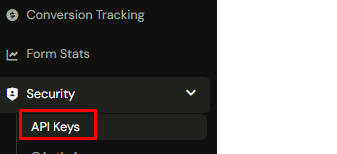
Go to API settings in your Driftrock account and create an API key for Amazon.
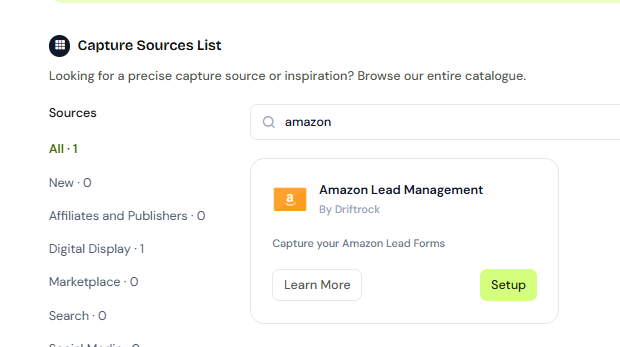
Open the Capture library and select Amazon lead management.
Select the Lead Type for your leads, so that you can use any consistent lead values or validation rules.
Name your capture, then enter the landing page ID. This is the code at the end of your Amazon form's URL. For example, in
https://www.amazon.co.uk/stores/page/FDC2CFB9-70CA-45A2-9F7B-ACA064ACFFB5, the landing page ID isFDC2CFB9-70CA-45A2-9F7B-ACA064ACFFB5.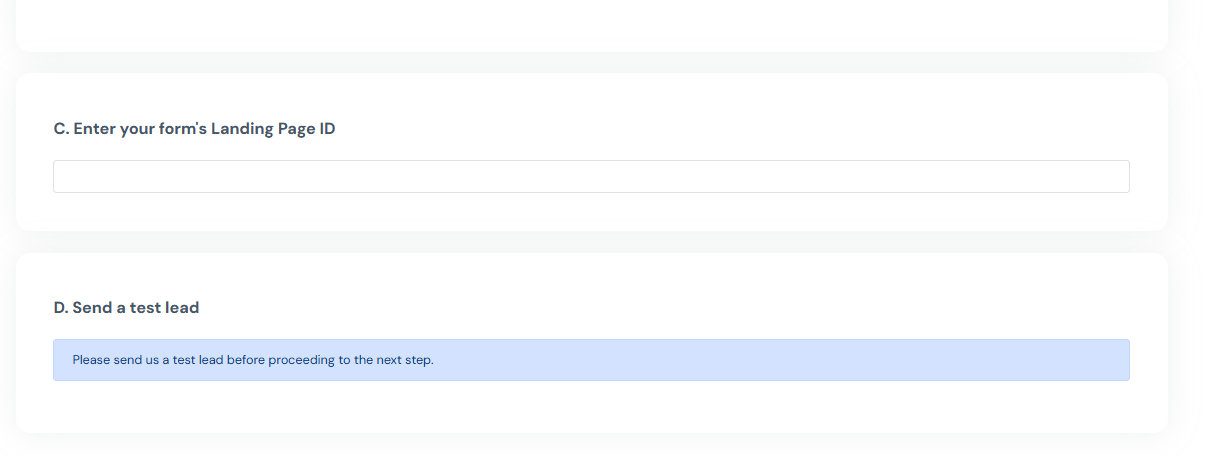
Copy the webhook URL and secret key shown in section B of the Capture. You need these for the next part.
Connect Driftrock in Amazon's lead manager
Sign in to Amazon's lead manager as an admin user and open the CRM Profiles tab.
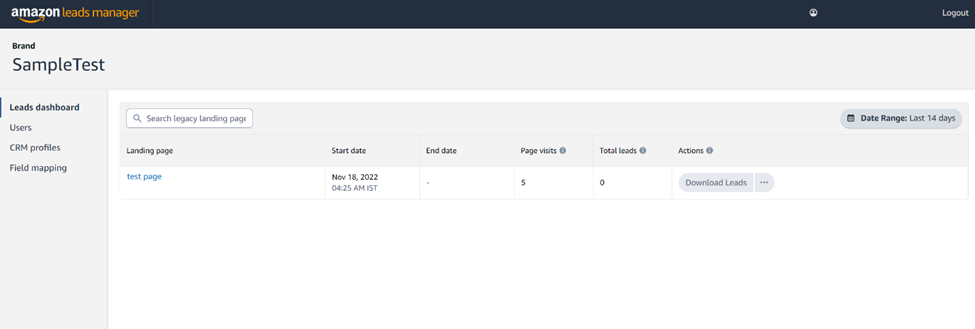
Select Create CRM profile.
Set the CRM type to Custom CRM and the CRM name to Driftrock.
Paste in the webhook URL and secret key from section B of your Driftrock Capture, then submit.
Find Driftrock in the list on the CRM Profiles page and select Active to turn the connection on.
Send a test lead and map your fields
Submit a test lead through your Amazon form.
Return to your Driftrock Capture and continue to step 3, Mapping. The test lead lets Driftrock read your form's fields so you can map them.
Complete the mapping and finish setting up the Capture.
Tips for getting the most out of Amazon Lead Ads
Plan your test leads. Each Amazon form can submit only one lead to a form, so use a separate Amazon account for each test you need to send.
Agree the form fields first. Changing fields after the form is live means updating your mapping in Driftrock, so it is simpler to confirm them with your CRM requirements up front.
Use the Amazon dashboard as a cross-check. Amazon's dashboard records every lead submitted to your form, and you can download lead data from it if you need to compare it with what has reached Driftrock.