Sync audiences from your CRM system or Driftrock
Audience Sync sends groups of people from your data to ad platforms such as Meta, Google and LinkedIn as custom audiences. Audiences are refreshed on a schedule, so changes in the source data are reflected in the ad platform without manual uploads.
What is Audience Sync?
Audience Sync takes a defined segment of people (an audience), hashes their personal data and sends it to your connected ad accounts. The ad platform matches the hashed data against its own users and creates or updates a custom audience.
Audiences can come from two sources:
Your CRM: Driftrock pulls segments that already exist in your CRM.
Driftrock Segments: You build segments in Driftrock from the leads Driftrock has captured.
You can use one source or both, depending on your data structure.
Why use Audience Sync?
Without Audience Sync, custom audiences are usually created by exporting a list, formatting it and uploading it to each ad platform by hand. Those lists go out of date until the next upload. Audience Sync automates the upload and keeps audiences current at the frequency you set.
Synced audiences can be used for:
Retargeting: for example, people who booked a test drive.
Lookalike audiences: using a segment as the seed audience.
Exclusions: for example, removing recent purchasers or unsubscribed contacts from prospecting campaigns.
Model-specific campaigns: people who selected a particular model.
Local campaigns: people in a given postcode area or assigned to a given retailer.
In the ad platform, a synced audience works the same way as any other custom audience.
How it works
Route 1: Audiences from your CRM
Driftrock connects to your CRM through an API (an interface that lets two systems exchange data). Your CRM must expose the audience segments you want to use through that API. Driftrock reads the segment, hashes the personal data and sends it to the selected ad platforms using their audience APIs.
The sync runs every 3 hours, daily or weekly. When a person is added to or removed from the segment in your CRM, they are added to or removed from the ad platform audience at the next sync.
This route can use any data held in your CRM. It depends on the CRM making the segments available to Driftrock.
Typically, connecting via this method requires the CRM to expose an endpoint and method for fetching that audience, i.e a GET request or similar.
Route 2: Audiences from Driftrock Segments
A Driftrock Segment is a filtered group of leads in the People view. Filters can use any field captured with a lead, such as model of interest, an answer to a form question, lead source or lead date.
Segments only contain data held in Driftrock. They do not include data from your CRM. Segments sync to ad platforms in the same way as CRM audiences, with the same hashing and sync frequencies.
This route does not require any changes to your CRM.
Using both routes
Both routes can run at the same time.
From your CRM | From Driftrock Segments | |
|---|---|---|
Data used | Data held in your CRM | Leads and answers captured in Driftrock |
Requirements | CRM segments available via API | People view enabled; relevant fields stored |
Setup time | CRM dependent | Short |
Sync frequency | CRM dependent | Every 3 hours, daily or weekly |
Getting started
Prerequisites:
Ad accounts (Meta, Google and/or LinkedIn) connected under Settings > Connections.
For CRM audiences: your CRM connected to Driftrock, with the required segments available.
For Driftrock Segments: the People view enabled on your account. Contact your Driftrock team to enable it.
Syncing an audience from your CRM
Go to Settings > Connections and check that your CRM and ad accounts are connected.
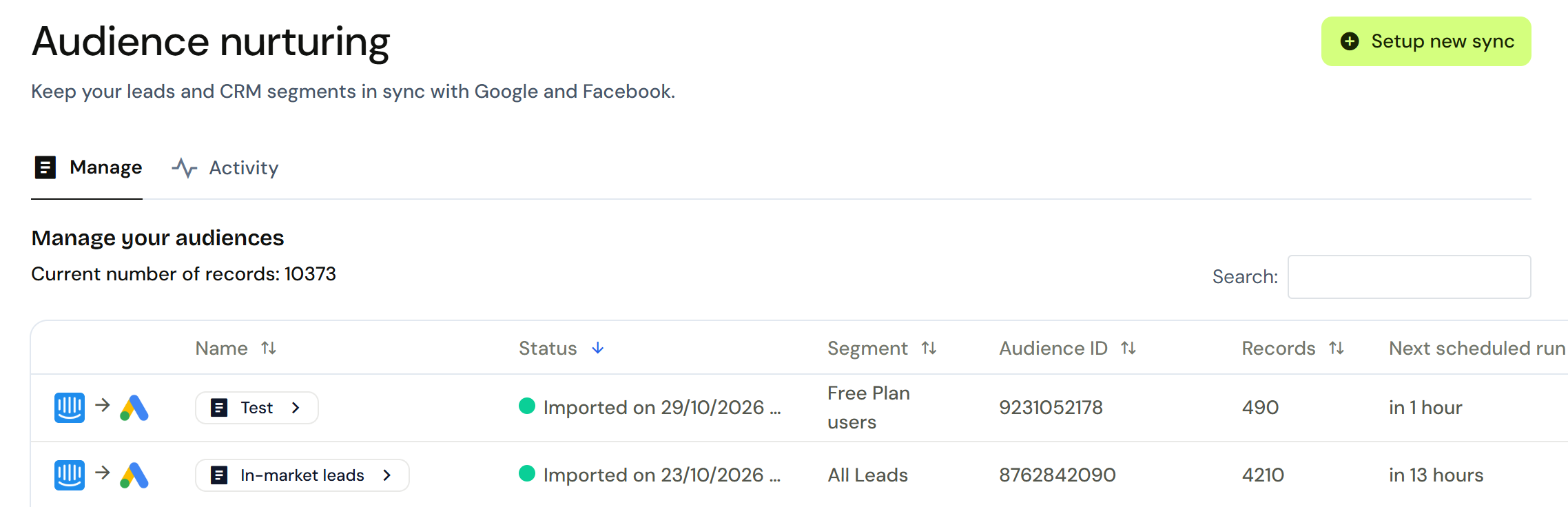
Open Audience Nurturing from the navigation menu.
Click Setup a new sync and enter a name for the audience.
Select your CRM as the source, then select the segment.
Select the ad platform(s) to sync to.
Select the sync frequency: every 3 hours, daily or weekly.
Review the settings, confirm the consent statement and start the sync.
Creating and syncing a Driftrock Segment
Click People in the sidebar.
Apply filters to define the audience, for example "Lead date is within the last 90 days".
Click Save Segment and enter a name.
Open Audience Nurturing and click Setup a new sync.
Under Source, select Driftrock Segments, then select your segment.
Select the ad platform(s), map the fields and select the sync frequency.
Review the settings, confirm the consent statement and start the sync.
Notes
Match rate: ad platforms match on the identifiers you send. Mapping email, phone number, first name and last name gives a higher match rate than email alone.
Stored fields: segments only include data from fields set to be stored. If a field was not stored before, only leads received after storage was turned on will appear.
Data retention: segment size depends on how long lead data is retained. A retention period of more than 30 days is recommended.
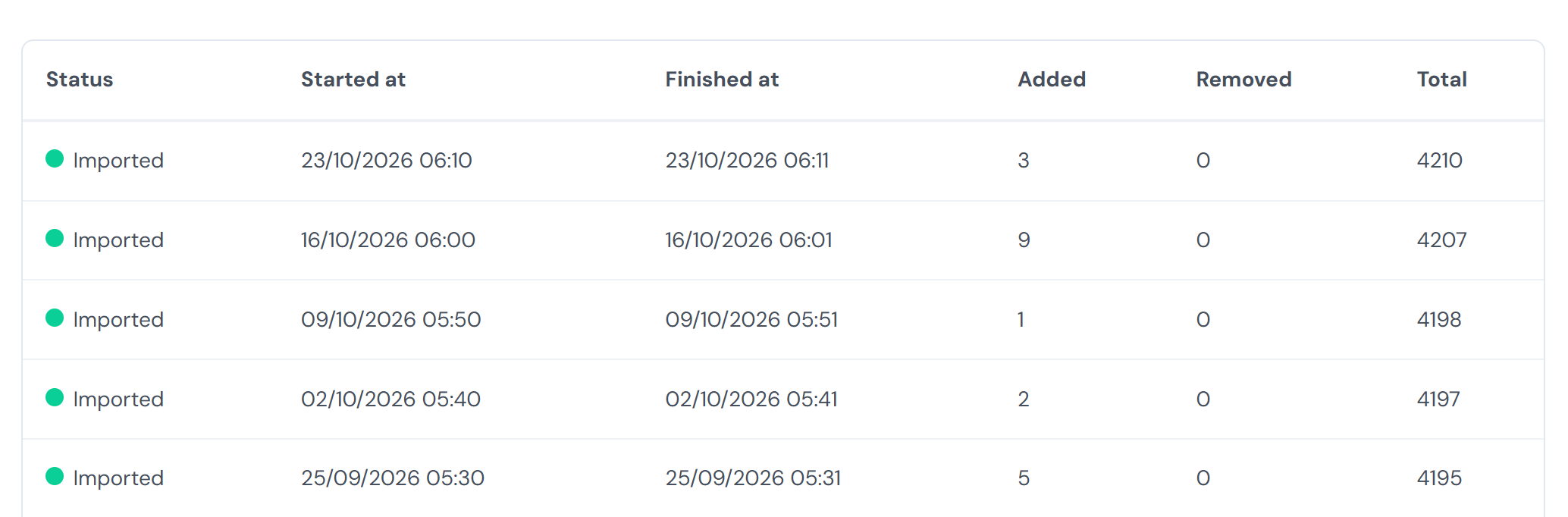
Sync status: the Manage tab in Audience Nurturing shows the last sync time and status for each audience. The Activity tab shows the number of people added and removed over time.
Consent: only sync people who have consented to their data being used for marketing. You confirm this when setting up each sync.