
Exploring the capture library and adding new affiliate partners or publishers
This guide explains how the Capture Library is organised, how to find and set up the Affiliate Capture, and how to add affiliate partners or publishers so they can send leads into Driftrock.
What is the Capture Library?
The Capture Library is where you browse and set up the lead sources that send leads into Driftrock. It includes pre-built integrations for sources such as Meta, Google, TikTok, LinkedIn, automotive marketplaces and website forms, as well as the Webhook and Affiliate Captures for custom and partner integrations.
A Capture is a connection between one lead source and Driftrock. Once a Capture is set up, leads from that source are received, checked and sent on to your Destinations.
You can open the Capture Library from the left-hand navigation menu.
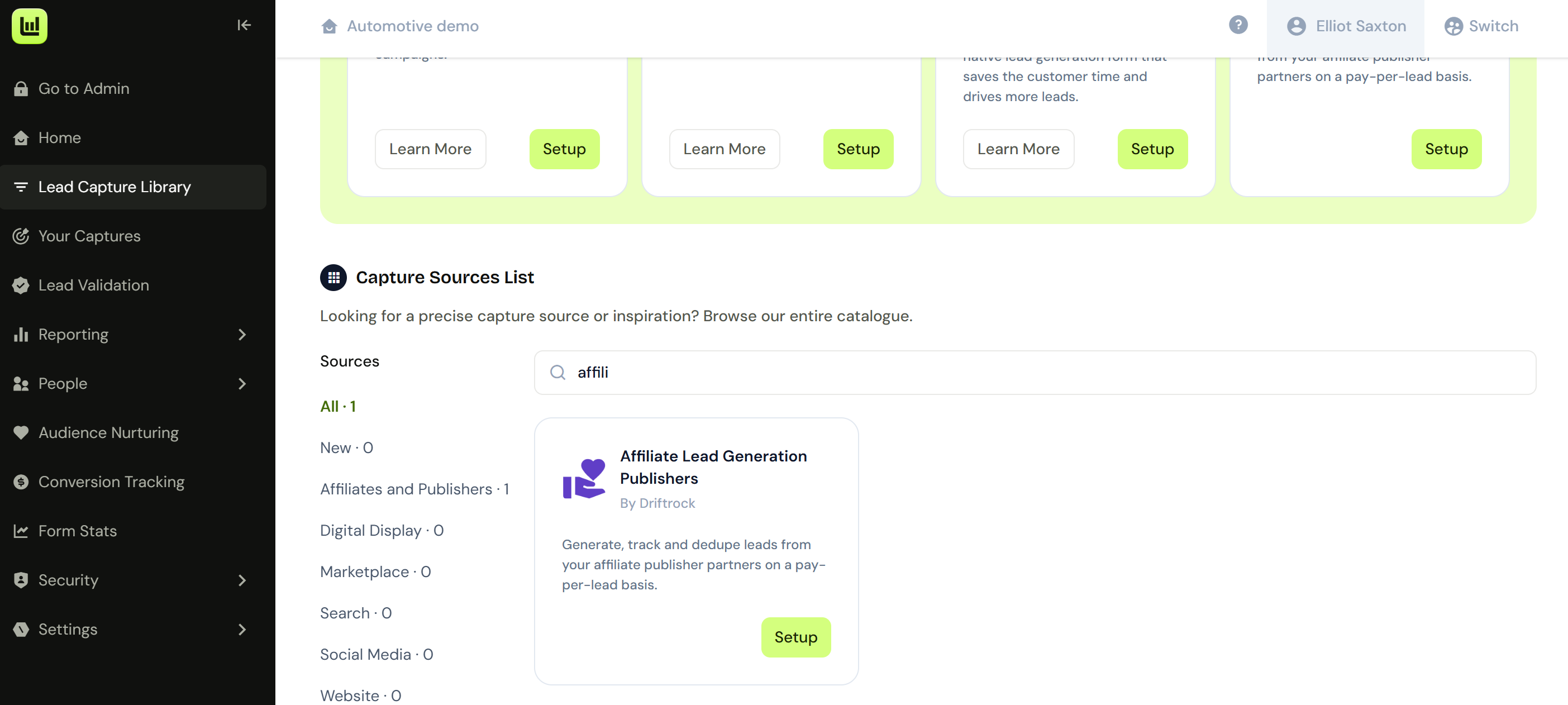
How the Capture Library is organised
Each lead source is shown as a card. Every card includes:
the source's logo
the title and provider
a short description
a Read More button, which opens documentation for that source
a Setup button, which starts the setup process
The setup process
Clicking Setup on a card opens a setup wizard. The standard steps are:
Connect: link the source to Driftrock, for example with an API key.
Mapping: map the incoming data to Driftrock fields so leads from all your sources use the same structure.
Destinations: choose where leads are sent, such as a CRM or email system, autoresponders, internal notifications or a Conversions API.
Review: check your settings before the Capture goes live.
Some Captures include additional steps. The Affiliate Capture, for example, includes steps for Acceptance Rules and custom deduplication rules.
Once setup is complete, the Capture appears in Your Captures, where you can monitor, edit, duplicate, pause or delete it.
Adding affiliate partners or publishers
Affiliate partners and publishers send leads to Driftrock through the Affiliate Capture. Each partner you add to an Affiliate Capture is assigned a unique Affiliate ID, which Driftrock uses to identify which partner sent each lead.
Each partner also needs its own API key, which they include in every request to confirm the lead comes from an approved source.
Any partner you wish to work with can use the Affiliate Capture option. You're not limited to the sources which currently appear in the library.
Prerequisites:
Admin permission, to create API keys.
An API key for each partner, created in Settings, then API Settings.
To set up an Affiliate Capture and add partners:
Open the Capture Library from the left-hand navigation menu.
Find the Affiliate Capture card. Click Read More if you want to review the documentation first.
Click Setup.
Give the Capture a name.
Define the fields you expect partners to send, such as Email, First Name and Phone. Toggle Required on any field that must be present.
Under Affiliates, add the name of each partner who will send leads to this Capture. Driftrock assigns each one an Affiliate ID.
Check the Marketing Tracking section. Driftrock uses each partner's name as the Source or Campaign value on their leads.
Add any Acceptance Rules and deduplication rules.
In the Destinations step, add your CRM or other Destination, map your fields and activate the sync.
On the Review step, note each partner's Affiliate ID, the API endpoint URL and the example payload.
Send each partner their Affiliate ID, API key, API endpoint URL and example payload.
Ask each partner to send one live test lead, then check Your Captures to confirm it arrived with the correct partner tag.
To add a partner to an existing Affiliate Capture:
Go to Your Captures and find the Affiliate Capture.
Click the pencil icon or the three-dot menu and select Edit.
Add the new partner's name under Affiliates and save.
Create an API key for the partner in API Settings.
Send the partner their Affiliate ID, API key, API endpoint URL and example payload, then ask them to send a test lead.
Tips
Click Read More on any card to see documentation for that source before you start setup.
Add each partner separately, with its own API key, so you can report on and manage each one individually.
Use the partner's recognisable name when adding them, as this name appears as the Source or Campaign value in reporting.
To set up a new Capture with similar settings to an existing one, use Duplicate in Your Captures.
If a lead source you need is not listed in the Capture Library, you can use the Webhook Capture to receive leads from it, or contact your Driftrock Customer Success team.
If a partner's test lead does not appear, check that they are using the correct Affiliate ID, API key and endpoint, then review the Rejected tab in Your Captures for the reason.