
Creating API keys for affiliate partners
This guide explains how to create an API key for each affiliate partner or publisher who sends leads into your Driftrock account, how to share it, and how to revoke it.
What is an API key?
An API key is a unique code that allows an external system to send data into your Driftrock account through the API. When an affiliate partner sends a lead to your Affiliate Capture, they include their API key in the request. Driftrock uses the key to confirm that the request comes from an approved source.
API keys are created and managed on the API Settings page. Every Driftrock account starts with at least one Default API Key.
One key per partner
Create a separate API key for each partner rather than sharing one key between them. Each key has its own name, usually the partner's name, so you can see which key belongs to which partner.
Separate keys mean that if you need to stop one partner sending data, for example because a partnership has ended or a key has been exposed, you can revoke that partner's key without affecting any of your other partners.
How it works
An Admin creates a new key on the API Settings page and gives it a name. Driftrock issues the key immediately, and it appears in the list with an Issued at date.
You then share the key with the partner, along with the details of the Capture they should send leads to. The partner includes the key in the header of each API request. Driftrock authenticates the request and accepts the lead into the Capture.
If a key is revoked, any requests that use it are no longer accepted.
Getting started
Prerequisites: you need Admin permission. The API Settings page is only visible to Admin users.
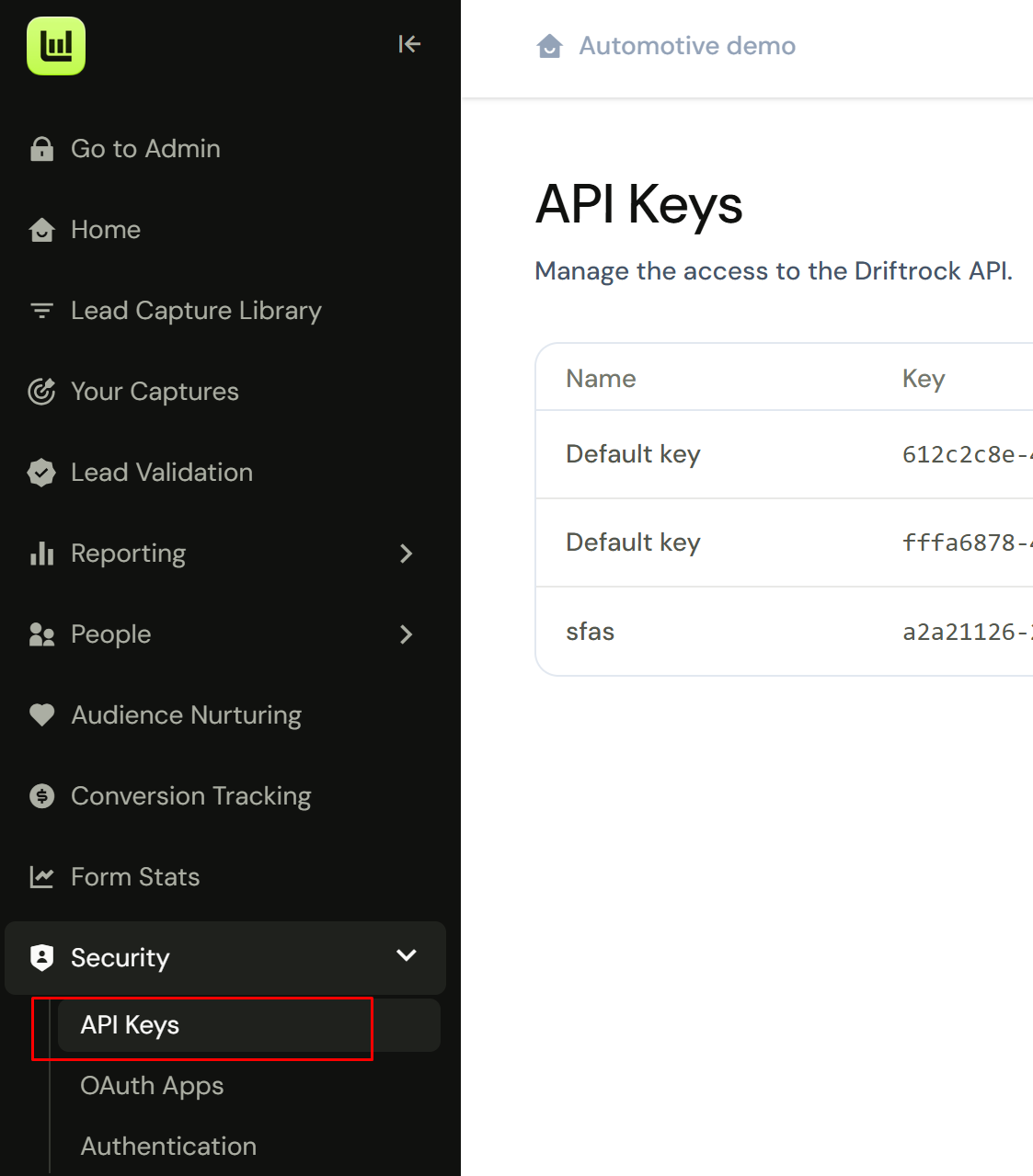
Go to Security, then select API Keys in the left-hand menu.
Review your existing keys and their status.
Click Add an API key.
Enter a name for the key. Use the partner's name, for example "Car Affinity".
Click Create. The new key appears in the list with an Issued at date.
Copy the key and share it with the partner using a secure method (see Tips below).
Send the partner the details of the Affiliate Capture they should send leads to, including the API endpoint URL, their Affiliate ID and an example payload.
Ask the partner to send one live test lead, then check Your Captures to confirm it arrived.
Revoking a key
Go to Settings, then API Settings.
Find the key for the partner.
Click Revoke.
Once revoked, the partner can no longer send data into your account using that key. If the partner needs to send leads again, create a new key for them.
Tips
Treat API keys like passwords. Share them using a password-protected file, a password-sharing service or a time-limited link, not by plain email or internal chat.
Name each key after the partner it belongs to so you can find it quickly if you need to revoke it.
Revoke a partner's key when the partnership ends.
If you cannot see API Settings, ask an existing Admin in your account to update your permissions.
If a partner says they are sending leads but none are appearing, check with them that they are using the correct key, that the key has not been revoked, and that they are sending to the correct Capture endpoint.